It's sometimes easier to automate startup tasks instead of having to do them manually every time, for instance in the case of permanent video installations, where you might not even have access to the computer once it is set up. This article presents the options that can help you make Proxima autonomous.
Automating startup actions
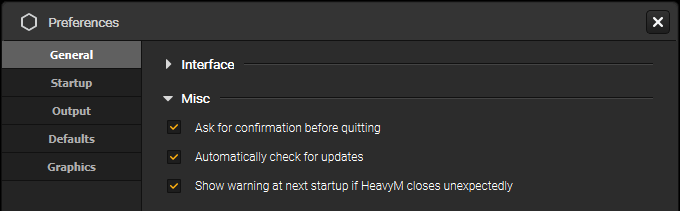
To avoid invasive prompts when Proxima is unattended, you can disable user warnings that may appear unexpectedly, such as update and crash notifications at startup or confirmation warnings when quitting.
See the options in the General tab of the Preferences window (Edit → Preferences… or [Ctrl+,]), under “Misc”.
The 4 options presented in this section are independent, but combining them will allow you to automate seamless project playback every time the computer is turned on.
Opening a project automatically when Proxima starts
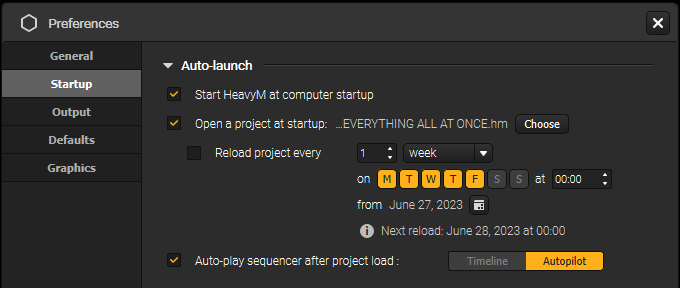
To open a specific project automatically every time Proxima starts, open the Startup tab of the Preferences window (Edit → Preferences…) and check "Open a project at startup". Use the "Choose" button next to the option to specify the path of the project.
Note: if a projection is configured in the project (from the Output → Setup… module), it will also be launched once the project has finished loading.
Starting playback automatically
To start playback automatically once a project has finished loading, go to the Startup tab of the Preferences window (Edit → Preferences…) and check "Auto-play sequencer after project load".
You can choose between two actions:
- playing the Timeline
- turning on Autopilot
Disabling unwanted user prompts
Was this article helpful?
That’s Great!
Thank you for your feedback
Sorry! We couldn't be helpful
Thank you for your feedback
Feedback sent
We appreciate your effort and will try to fix the article