The Properties panel, located on the left side of the interface, provides access to advanced features for the selected object. When no shape is selected, it displays the properties of the currently active group. To activate a group, simply click on its header in the Layers panel.
These properties complement the quick actions available in the Layers panel. For more details about the panel itself, refer to its dedicated presentation.
Note
Multi-group selection isn't currently supported, so you can only edit one group's properties at a time.
Group Properties
The Properties panel offers these group-specific features:
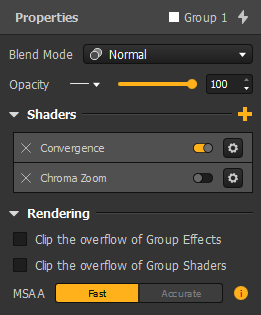
- Group Properties Presets: Click the lightning icon
 to access and apply saved presets containing all property values listed below.
 - Blend Mode: Determines how groups blend together in the rendering. The available modes are identical to those accessible via the
 icon in the Layers panel. Hover over each mode to preview its effect before selecting.
 - Opacity: Controls the transparency of the entire group as a single layer. You can assign a Control to dynamically adjust this value.
- Shaders: Add post-processing shader effects to groups (same shaders available for Players, Sequences, and Master).
- Overflow Clipping: Manage how effects extend beyond shape boundaries. Set default behaviors in Preferences (Edit → Preferences... → Rendering → Overflow) and override them here for:
- Group Effects
- Group Shaders(clipped to group outline)
Comparison of clipping options:
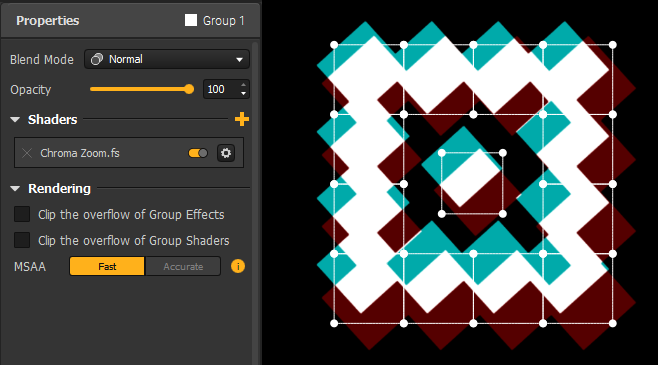 → Nothing clipped
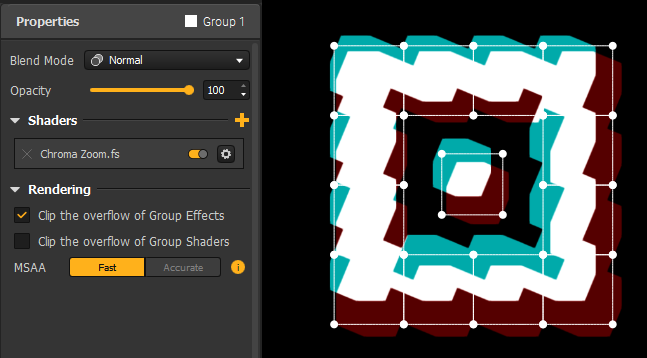 → Effects clipped
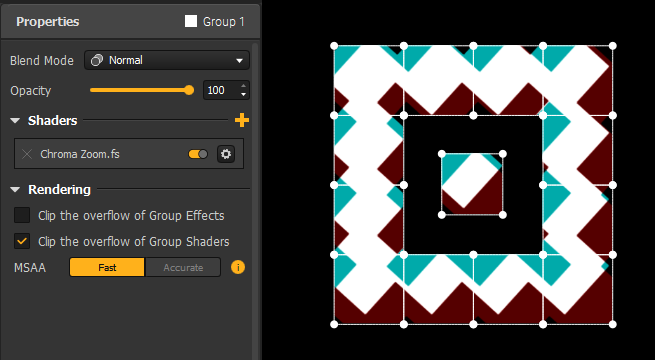 → Shaders clipped
- MSAA Algorithm: Affects anti-aliasing quality and efficiency at group edges. Configure global MSAA settings in Preferences (Edit → Preferences... → Rendering → Antialiasing).
- Choose:
- "Accurate" for cleaner edges (removes dark borders)
- "Fast"for optimized performance
Additional Group Options
More group options are available through the options menu  in the Layers panel header:
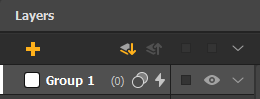
- Rename: Change the group's name (also accessible by double-clicking its name in the layer list).
- Color: Modify the group's display color in the work area (doesn't affect output). Click the color icon to choose from 30 available colors.
- Copy Group Effects to: Quickly duplicate group effects and their parameters to another group.
- Reset Group Effects: Restore group effects to default (thin white border). Use the Layers Panel header menu for the bulk option "Reset All Group Effects".
Was this article helpful?
That’s Great!
Thank you for your feedback
Sorry! We couldn't be helpful
Thank you for your feedback
Feedback sent
We appreciate your effort and will try to fix the article