Before starting to create your project, it is important to correctly configure the canvas and output. The canvas defines the working area where your content is designed, while the output setup determines how this content will be displayed on your screens or projectors. A proper configuration ensures that your visuals are rendered with the right resolution and proportions.
TABLE OF CONTENTS
Canvas setup
What is the canvas?
The canvas is the black zone at the center of your work area. It corresponds to the area where content is rendered in order to be displayed in the output, which means that anything you draw outside of it won’t be rendered.
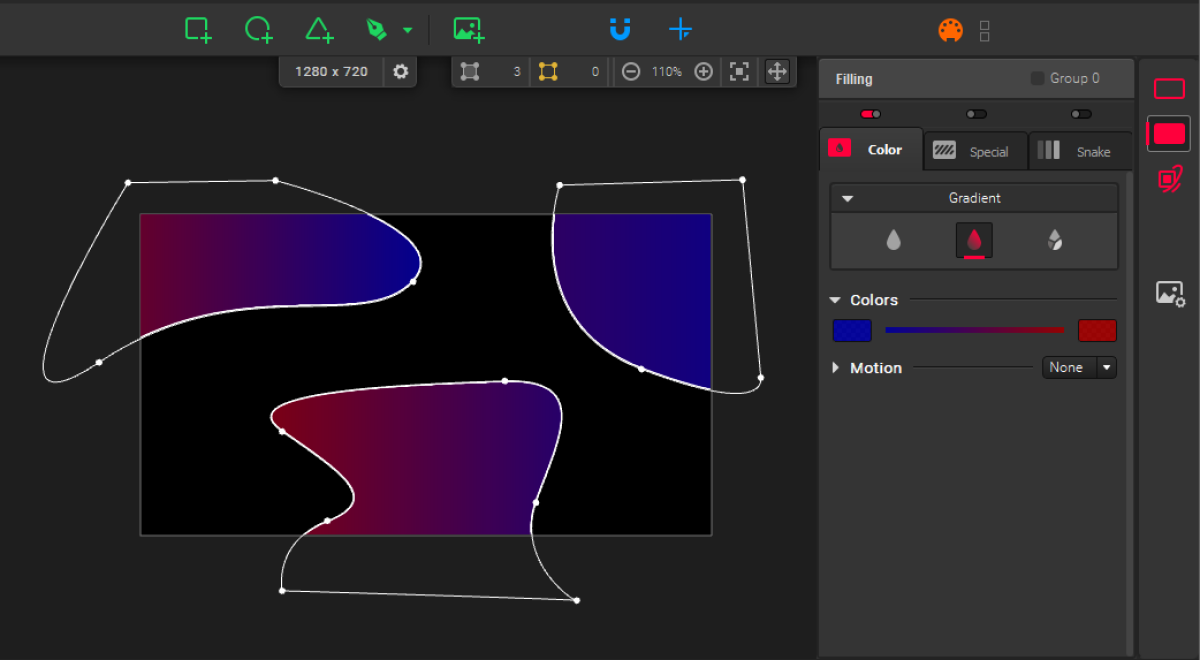
Be mindful that the canvas size is a different element than the output resolution of your display(s). That’s why it is important to setup both accordingly.
Choosing a canvas size
The canvas size affects how your work is rendered in a display output. You should choose a canvas resolution that corresponds to the desired output resolution. For example:
- If you are using a single projector with a 1920x1080 resolution, you need to put this resolution as your canvas size.
- If you are using multiple displays, the canvas resolution should correspond to the total resolution of your projection area (minus an eventual margin for edge blending).
For instance, with two 1920x1080 projectors side by side, without edge blending you’ll need a 3840x1080 canvas.
Note
Another example is if you have multiple projectors with the same resolution and want them to only display the same content, then the total resolution should be that of a single projector
Setting up a canvas size
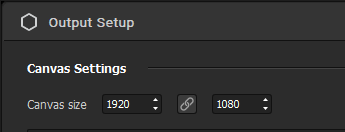
By default, the canvas resolution is 1920x1080. To change this value, use the projector icon  in the top toolbar, or go to Output → Setup... to access the Output Setup window.
At the top of the window, you’ll see the Canvas Settings section, where you can input a resolution (Width x Height).
Note
The canvas size is the same throughout all sequences of a project.
Output setup
You have two choices: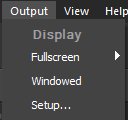
- You can launch a simple Fullscreen output: your project is displayed on the screen of your choice, without any title bar. To launch a quick fullscreen projection on one screen, simply choose a display from the list in Output → Fullscreen.
In this case, the entire canvas is projected, so if it has a different resolution than the display, the rendering is stretched to fit fullscreen. - You can use the Setup option to configure an advanced output: multiple output displays, with output warping or edge blending for instance. More on that in this article.
Was this article helpful?
That’s Great!
Thank you for your feedback
Sorry! We couldn't be helpful
Thank you for your feedback
Feedback sent
We appreciate your effort and will try to fix the article