TABLE OF CONTENT
Organizing Audio Files Within Folders
As with folders, file names directly influence audio playback behavior.
Note: File names can be freely chosen when the folder uses random playback ([RND] or no playback mode tag). In this mode, all files are played and can be interrupted.
For sequential playback, files must be numbered. File names begin with three digits from 001 to 999, followed by a name of your choice. Optional tags can be added to control file interruption, output switching, and other playback actions.
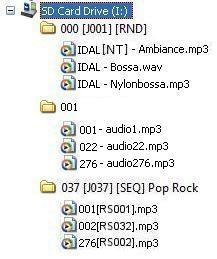
Examples:
001 [J367] my message.mp3063 [RS020] file name.wav845 [V+12][RL01] my file.mp3MY SONG [NT].wav
Two audio file formats are supported:
- WAV audio files (.wav).
- MPEG Layer 3 audio files (.mp3).
Note: When numbered and unnumbered files are stored in the same folder, only numbered files are played in sequential mode ([SEQ]). In random mode, all files are played.
The first three digits identify the file number, from 001 to 999.
Examples:
001.mp3: File No. 001.063.wav: File No. 063.
In random mode ([RND]), files do not need to be numbered. In sequential mode ([SEQ]), files are played in the numerical order defined by their first three digits. Unnumbered files are ignored.
Optional File Tags
Optional parameters can be added to file names to change the player's behavior. Each parameter is enclosed in square brackets [ ]. Several tags can be used in the same file name.
- [Jxxx]: Jump to another folder after the current file finishes playing.
- [NT]: Prevent the file from being interrupted by folder change commands.
- [RSxxx]: Send a sequence of bytes through the RS232 serial connection.
- [V+xx] or [V-xx]: Temporarily adjust the playback volume.
- [Rxxx] – EP230 only: Activate or deactivate output contacts.
Note: Without optional tags, files are played one after another according to the selected mode (random or sequential) and can be interrupted by an external action.
[Jxxx] – Jump to Another Folder
This tag specifies the folder to play after the current file finishes.
If the destination folder does not exist, playback stops.
If the destination folder contains no files but its name includes an optional tag, that tag is executed. If no playback option is specified, the player enters Stop mode.
Examples:
my file [J002].mp3: Jump to folder 002 after the file finishes playing.003[J023][RL02].mp3: Activate output 2 and jump to folder 023 after the file finishes playing.034[J034].wav: Jump to folder 034 after the file finishes playing. This is a folder jump, not a loop of file 034.
This function can be used to trigger a folder jump automatically when a particular file finishes playing.
Several different files can specify the same destination folder.
Examples:
001 [J100].mp3: After playing file 001, jump to folder 100.002 [J100].wav: After playing file 002, jump to folder 100.
[NT] – Non-Interruptible File
This tag defines whether the current file can be interrupted.
When [NT] is included in a file name, folder change commands are ignored while the file is playing.
Without this tag, the current file can be interrupted by an external action, unless the [NT] tag is included in the folder name.
Example:
message [NT].mp3: The file cannot be interrupted by folder change commands.
A folder change triggered by an input contact, RS232, or another control method is ignored while the file is playing. The command is not stored, and the triggering information is lost.
Interruptible and non-interruptible files can be stored in the same folder.
Note: The [NT] tag applies only to folder change commands. PLAY, STOP, NEXT FILE, and PREVIOUS FILE commands are executed immediately.
[RSxxx] – Send RS232 Commands
This tag sends a sequence of bytes through the RS232 output.
When the file is played, the player transmits a sequence of bytes over the serial connection to control another device, such as another player, a switching matrix, or a video projector.
The bytes to transmit are defined in a dedicated text file.
Default serial settings: 19200 baud – 8 data bits – No parity – 1 start bit – 1 stop bit.
The baud rate can be changed using the config.txt file.
The xxx parameter identifies the serial command to send. It corresponds to a line number in the serial.txt file and must contain three digits from 001 to 999.
For example, [RS002] sends the byte sequence defined on line #002 of serial.txt.
Creating the serial.txt File
The file must be named serial.txt and copied to the root of the storage medium (SD/SDHC card or USB flash drive).
It must be a plain-text file created with a simple text editor, such as Windows Notepad. Save the file using ANSI encoding. Do not use special characters.
The file contains one or more lines of hexadecimal byte values, from 00h to FFh, separated by spaces. Enter only the two hexadecimal characters for each byte, without the "h" suffix.
Each command line begins with:
#xxx: where xxx is the command number associated with the [RSxxx] tag.
Example:
#001:45 85 63 21 78 A5 B2
#002:98 75 21 35 45 98
#100:21 35 45 78 A5 B2
Comments can be added using two forward slashes (//).
// Example file
#001:05 A1 FF E4 // Comment on this line
#005:45 85 63 21 78 A5 B2
#100:98 75 35 45 98 // My command

// Another command
#064: 48 25 Ce 8b

#128:4C 8E D9 5A //
#999:a4 Fc 48 3e 8B
// Comments at the end of the file
Example of a command to trigger playback of folder 001 on another MicroPlayer mkII:
#001:80 01 01
Examples of file tags:
001[RS001].mp3: Send the bytes defined on line #001 of serial.txt when file 001 is played.002[RS064].wav: Send the bytes defined on line #064 of serial.txt when file 002 is played.
[V+xx] or [V-xx] – File Volume Adjustment
These tags temporarily increase or decrease the output volume while a file is playing. They can be used to play certain messages louder or quieter than other audio files.
Volume changes are relative to the player's main volume setting.
The xx parameter specifies the number of volume steps to increase or decrease. It is written using two digits, from 00 to 64.
Examples:
001[V+05].mp3: Increase the volume by five steps while the file is playing.001[V-03].wav: Decrease the volume by three steps while the file is playing.
At the end of file playback, the volume returns to its previous level.
If the requested change exceeds the player's maximum or minimum volume, the volume is limited to the corresponding maximum or minimum value.
[Rxxx] – Output Contact Control (EP230 Only)
This tag activates or deactivates one or more output contacts.
Each file can control the outputs directly without additional programming. The outputs can be used to switch lights, operate motors, or perform other actions according to the file being played.
Important: Output states cannot change during file playback using this tag. To change output states during playback, use the Show Control function.
Examples from the manual:
001[R001] lion.mp3: Activate output 1 when the file is played.002[R255] cat.mp3: Activate all eight outputs when the file is played.004[R000] dog.wav: Deactivate all outputs when the file is played.
Values range from 000 to 255 and follow a binary progression.
Outputs are switched at the beginning of file playback. If subsequent files do not contain an output switching tag, the outputs retain their current state and are not automatically deactivated.
When a Show Control event file is played, output states can change according to the event scenario.
For more precise output control, it is recommended to manage output switching within the Show Control scenario.
Was this article helpful?
That’s Great!
Thank you for your feedback
Sorry! We couldn't be helpful
Thank you for your feedback
Feedback sent
We appreciate your effort and will try to fix the article