The EP220 and EP230 are more than audio file players. They can also play event sequence files to control DMX512-compatible devices in synchronization with audio playback. The EP230 can also control its output contacts.
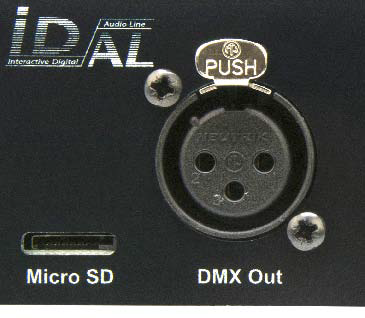
Using Show Control software, you can create scenarios that combine audio playback with commands sent to devices connected to the DMX output, keeping both perfectly synchronized.
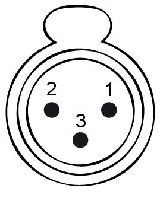
Any device compatible with the DMX512 protocol can be connected to this output, including dimmers, moving-head fixtures, DMX-to-relay converters and DMX-to-servo converters.
Creating a Project in Show Control
The principle is to create DMX event tracks or output contact tracks, then place events on a timeline according to the associated audio file.
Once the project file has been created, copy it to the player's storage medium alongside the audio files.
The player operates in the same way whether playing an audio file, an event file alone, or both files in synchronization. Folders and their options, triggering input contacts, and other control functions such as scheduled playback all work in the same way. You can use as many event files as required.
Real-Time Preview – EP230 Only
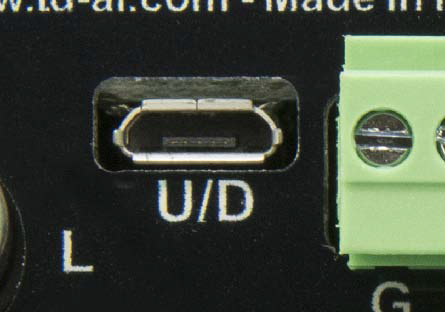
Connect the EP230 to a PC using a Micro-USB-to-USB cable to activate real-time mode in Show Control software.
The player then acts as a PC-to-DMX interface. Playing your project in the software allows you to preview the result directly through the player's DMX output.
Project Creation Steps
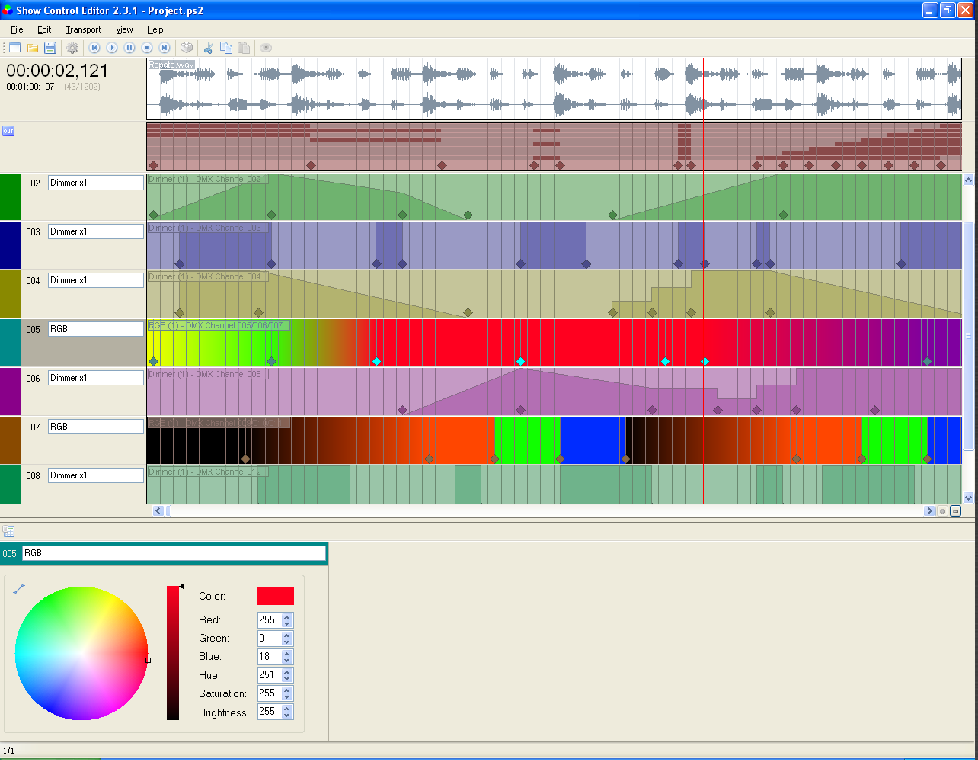
- Create a new project.
- Open the project's audio file and place it on the timeline.
- Display the DMX Device Patch and define the DMX channels used in the event grid.
- Place the different events on the tracks.
- Save the file and transfer it to the player's storage medium (USB flash drive or microSD card).
Exporting the Show Control File
Once your Show Control project is complete, export it as a file and transfer it to the player's storage medium.
- In the File menu, click Build show file.
- Export the project using the same name as the associated audio file. Keep the .sc2 file extension unchanged.
- Copy the exported file to the player's storage medium, in the same folder as the associated audio file.
Important: The Show Control event file and its associated audio file must have exactly the same base name to play together in synchronization.
Example of files stored in folder 001:
001/
├── Lion.mp3
└── Lion.sc2
Was this article helpful?
That’s Great!
Thank you for your feedback
Sorry! We couldn't be helpful
Thank you for your feedback
Feedback sent
We appreciate your effort and will try to fix the article