TABLE OF CONTENTS
Overview
The EP220 and EP230 players can be controlled using timestamped programming. This feature, called Scheduler, allows you to schedule audio or video file playback, stop playback, or resume playback at a specific date and time.
How Scheduler Works
The EP220 and EP230 use their built-in clock to execute scheduled actions at the specified date and time. These actions are stored in a timestamped programming file called the Scheduler file.
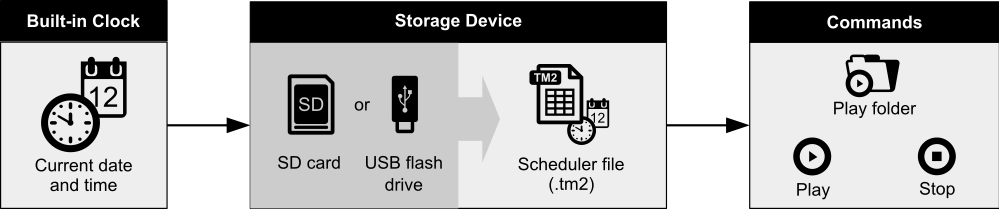
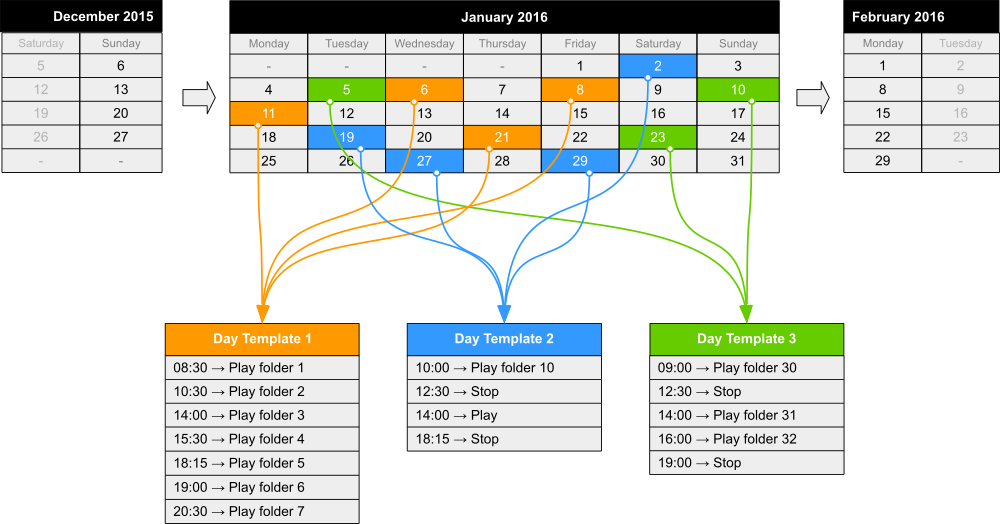
The principle is to create day templates (Monday, Tuesday, Saturday, weekdays, special days, public holidays, etc.) and assign actions to specific times throughout each day, such as playing a message, switching folders, or starting playback.
These day templates are then assigned to dates in a calendar so that the corresponding actions are executed on the selected dates.
Notes:
- If no action is required on a particular date, leave that date empty in the calendar without assigning a day template.
- If the same actions must be performed on several dates, assign the same day template to each of those dates.
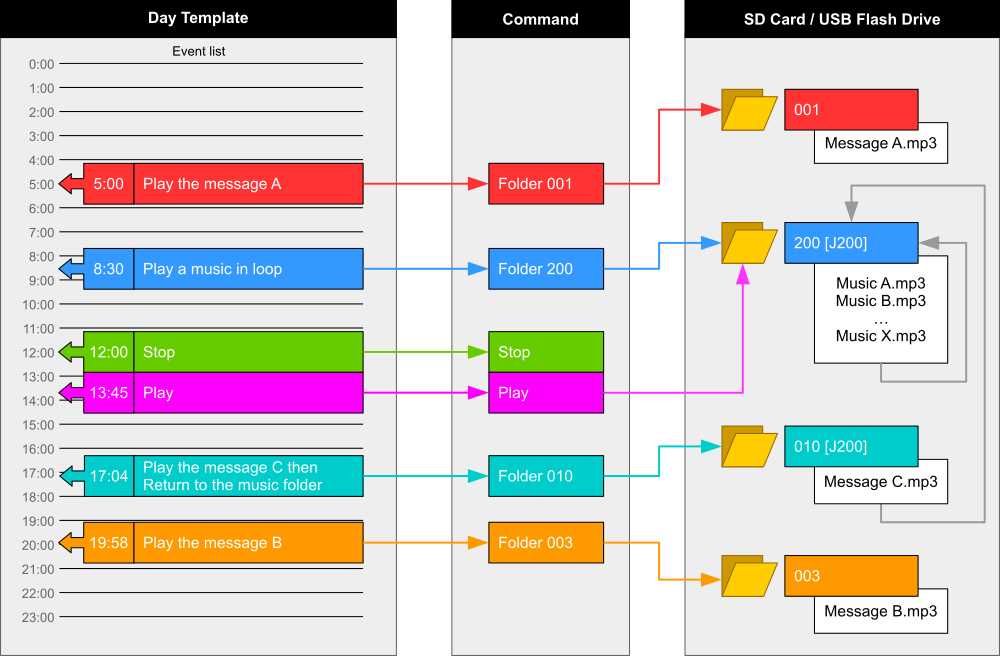
A day template defines the events for an entire day, minute by minute, from 00:00 to 23:59. Each event specifies a command to be executed at a particular time.
The Scheduler feature supports:
- Up to 65,535 different day templates in a schedule.
- One scheduled command per minute within a day template.
- Execution of each scheduled action precisely when the minute changes.
- One command executed per event.
Available Scheduled Commands
A scheduled event can execute one of the following commands.
PLAY FOLDER – Play an Audio Folder
This command starts playback of a folder containing audio files. Up to 1,000 folders are supported.
You must specify the number of the folder to play. The folder number is defined by the first three digits of its name, from 000 to 999. The folder must be located at the root of the storage medium.
Playback behavior depends on the optional tags included in the folder name:
xxx[Jxxx]: Loop playback by jumping to the specified folder.xxx[RND]: Random playback.xxx[SEQ]: Sequential playback.
For more information, see the article about folder naming and playback options.
PLAY – Resume Playback
This command resumes playback in the folder where the player was stopped.
If no folder playback command has been executed previously, or if the player stopped after leaving a folder, the PLAY command is ignored.
STOP – Stop Playback
This command stops playback within the folder currently being played.
Creating a Timestamped Programming File
Timestamped programming is stored in a Scheduler file, generated using the dedicated Scheduler software.
The software generates a file in TM2 format, with the .tm2 extension.
The generated file must be named exactly:
scheduler.tm2
Once the schedule has been created and exported using Scheduler software, copy the scheduler.tm2 file into the SYSTEM folder on the player's storage medium (microSD card or USB flash drive).
Was this article helpful?
That’s Great!
Thank you for your feedback
Sorry! We couldn't be helpful
Thank you for your feedback
Feedback sent
We appreciate your effort and will try to fix the article