1. Sound Card Configuration
- On the rear panel of the sound card, switch the AUTO POWER SAVE switch to OFF.
- Install the card on a computer following the manufacturer's installation instructions.
- In the sound card configuration software TASCAM US-16x08 Settings Panel, set up the card as follows:
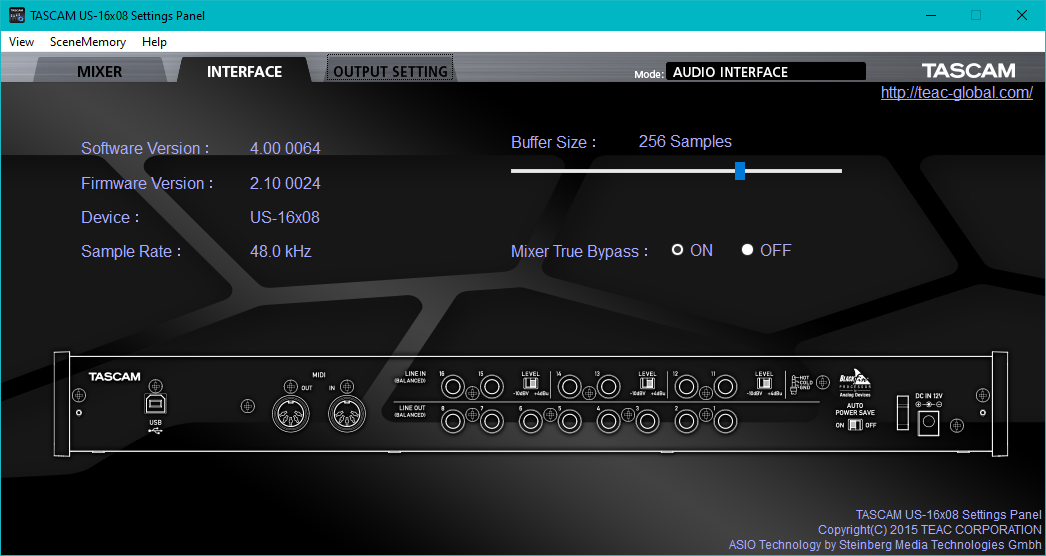
- In the INTERFACE tab, switch the Mixer True Bypass setting to ON.
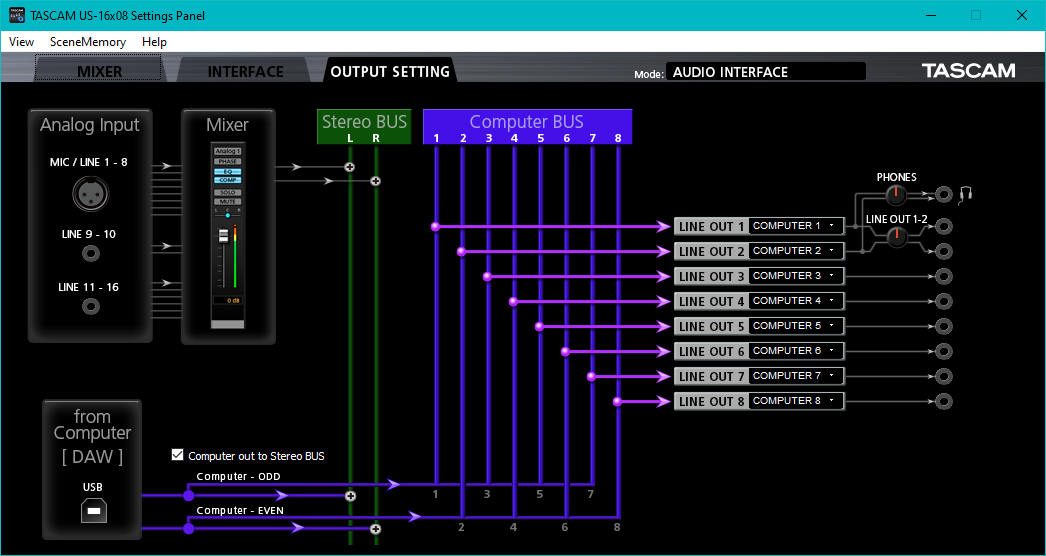
- In the OUTPUT SETTING tab, make sure that outputs LINE OUT 1 through LINE OUT 8 are set to COMPUTER 1 through COMPUTER 8.
- In the INTERFACE tab, switch the Mixer True Bypass setting to ON.
2. Preparing Audio Files in Audacity
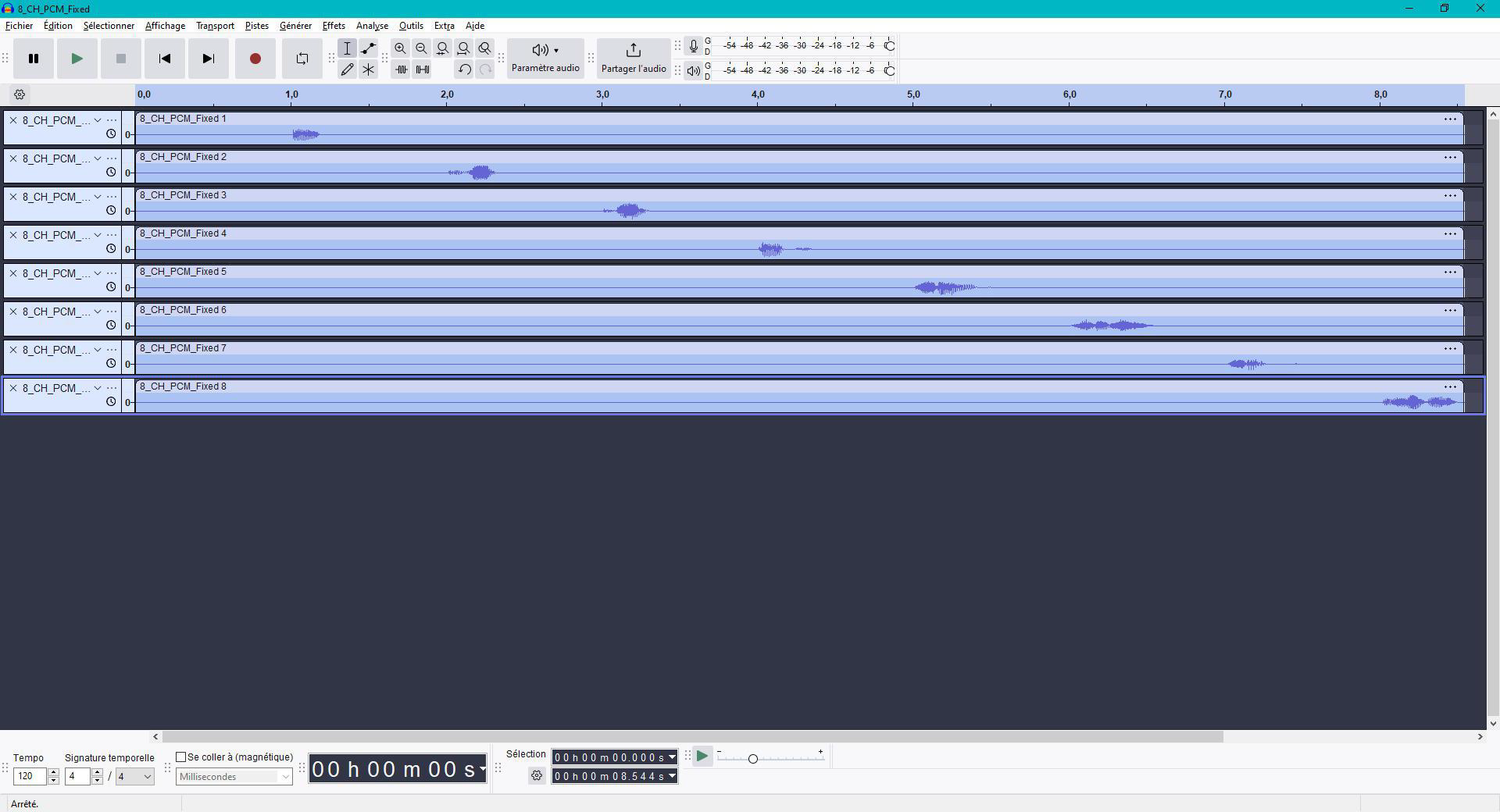
- Create your 8-channel mix in a 44100 Hz project consisting of 8 mono tracks (Tracks → Add New → Mono Track).
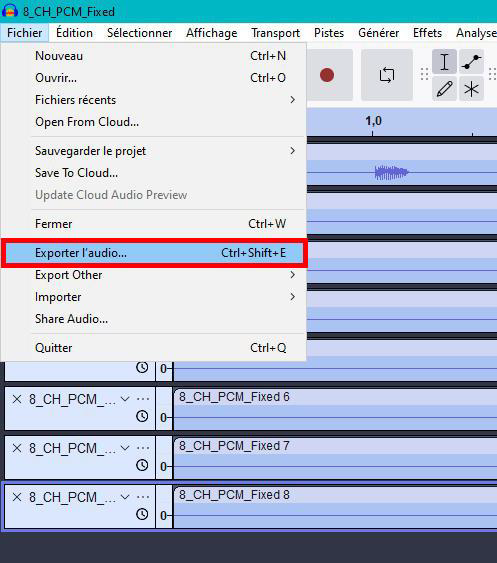
- Once the mix is finalized, go to the menu File → Export Audio...
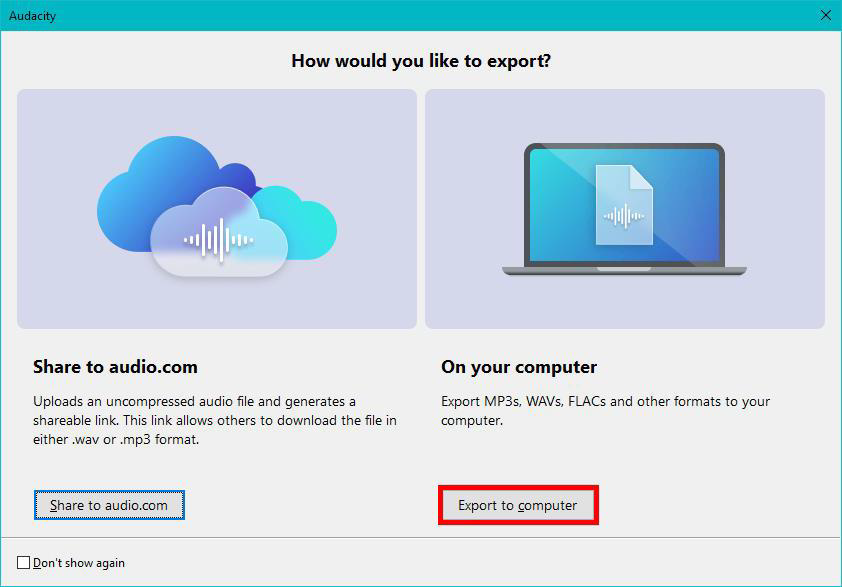
- Choose Export to computer.
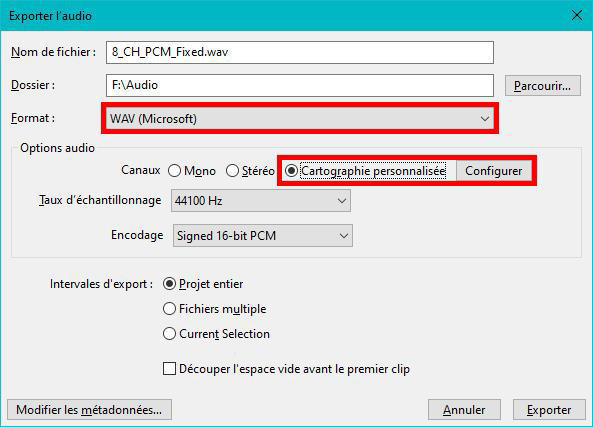
- Enter the File name and make sure the Format is set to WAV (Microsoft), then choose Custom mapping and click Configure.
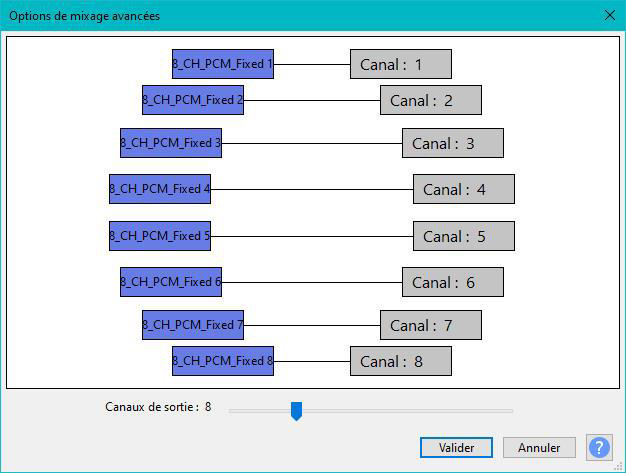
- In the Advanced Mixing Options window, set Output Channels to 8 and make sure each track in the project is assigned to a different output channel. Then click OK.
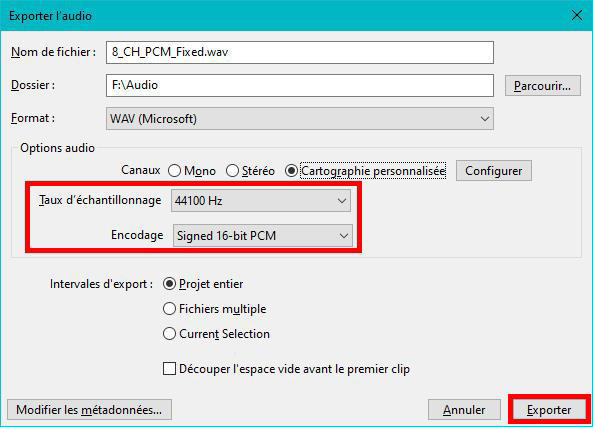
- Set the Sample Rate to 44100 Hz and Encoding to Signed 16-bit PCM, then click Export.
3. Player Configuration
In the System Settings → Sound menu of the player, make sure that:
- the Surround Sound and Multichannel setting is set to Automatic,
- the Digital Audio Output setting is set to PCM.
? Tip: the screenshots in the original document illustrate each step (TASCAM panels, Audacity menus, export options). They are not reproduced in this HTML page.
Was this article helpful?
That’s Great!
Thank you for your feedback
Sorry! We couldn't be helpful
Thank you for your feedback
Feedback sent
We appreciate your effort and will try to fix the article