The EVP380 can be controlled using scheduled programming. This feature, called Scheduler, allows you to:
- Schedule file playback (videos, messages, announcements, music, sounds),
- Stop playback,
- Restart playback at a specific date and time.
Principle
The EVP380 uses its internal clock to execute scheduled actions at the desired date and time. These actions are stored in a scheduled programming file (Scheduler file).
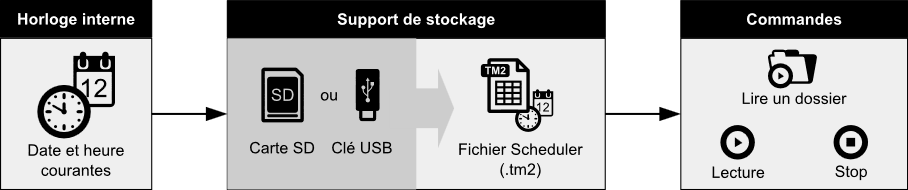
This file consists of:
- A calendar from January 1, 2016, to December 31, 2037,
- Each date in the calendar refers to a daily action program called a "typical day."
Special Cases:
• If no action is desired on a specific date: the corresponding date in the calendar is empty and does not reference any typical day.
• If the same actions must be performed on multiple different dates: the corresponding dates reference the same typical day.
A typical day describes the progress of an entire day, minute by minute, from 00:00 to 23:59. It consists of events that describe commands to be executed at a specific time.
Scheduler Features:
- Create multiple different typical days,
- Trigger an event every minute,
- Precise execution of the event when the minute changes,
- An event can only execute one command at a time.
Available Commands
An event can perform the following commands:
- PLAY FOLDER:Play a folder of files
- Starts playback of one of 1000 possible folders (numbered from
000to999). - The folder number is determined by the first 3 characters of its name.
- Playback modes (loop, random, sequential) depend on the rest of the folder name:
xxx[Jxxx]: loop playback,xxx[RND]: random playback,xxx[SEQ]: sequential playback.
- See the chapter Folder Organization for more details.
- Starts playback of one of 1000 possible folders (numbered from
- PLAY:Restart playback
- Restarts playback of the current folder.
- If no folder playback has preceded this command or if the player has stopped, it will be ignored.
- STOP:Stop playback
- Stops playback in the current folder.
- STANDBY: Put the player in standby mode.
- WAKE UP: Wake up the player.
- HDMI-CEC STANDBY: Turn off a display device via the HDMI-CEC protocol.
- HDMI-CEC WAKE UP: Turn on a display device via the HDMI-CEC protocol.
- VIDEO PROJECTOR (PJLINK) POWER ON: Turn on a video projector via the PJLink protocol.
- VIDEO PROJECTOR (PJLINK) POWER OFF: Turn off a video projector via the PJLink protocol.
You can configure the HDMI-CEC and PJLink interaction modes in the System Settings menu.
Putting the monitor in standby can automatically put the player in standby.
Creating a Scheduled Programming File
Scheduled programming is stored in a Scheduler file (format .tm2).
This file is created using the Scheduler software specifically developed by Waves System:
- Available at www.waves-system.com
- The default name
scheduler.tm2must not be modified, - Consult the user manual and prerequisites before installation.
Assigning Scheduled Programming to the Player
To assign the programming to the player:
- Create the programming file with the Scheduler software,
- Copy the
.tm2file into theSYSTEMfolder of the player's SD card or USB drive.
Was this article helpful?
That’s Great!
Thank you for your feedback
Sorry! We couldn't be helpful
Thank you for your feedback
Feedback sent
We appreciate your effort and will try to fix the article