Playing a web radio
The web radio function allows the player to play an audio stream from a third-party audio system, as described in External Audio Sources (page 17). This audio stream can be generated by an internet web radio service or a local broadcast server. The supported format is standard MP3 (MPEG layer 3).
A web radio address (URL) must point to an MP3 stream (.mp3) or to an M3U playlist (.m3u) that identifies the path to an MP3 stream.
Up to 10 web radios can be configured in a list of presets numbered from 1 to 10. Each web radio preset consists of:
- A name: an arbitrary name for the preset.
- A URL: the address of the web radio’s MP3 stream or M3U playlist.
How web radio monitoring works
The availability of a web radio depends on external factors such as network reliability and audio stream quality. For this reason, web radio playback is associated with a monitoring function that provides playback continuity even if the web radio becomes unavailable. Web radio playback starts when a predefined minimum cache level is reached.
The player switches to safety mode in the following situations:
The web radio server is unavailable
Symptoms:
- The connection is disconnected.
- The network infrastructure is down.
- The web radio server is stopped or unavailable.
Safety process: A music folder is played until the web radio has been operating stably for a set period.
The cache is empty (underrun)
Symptom: The web radio server’s clock runs slower than the player’s clock. After a period of operation, the cache becomes abnormally empty, causing an error known as an underrun.
Safety process: Depending on whether the option to pause playback in the event of an underrun is enabled:
- Disabled (default): A music folder is played until the web radio has been operating stably for a set period.
- Enabled: Web radio playback is paused until the predefined minimum cache level is reached again.
The cache is overloaded (overrun)
Symptoms:
- The web radio server’s clock runs faster than the player’s clock. After a period of operation, the cache becomes abnormally full, causing an error known as an overrun.
- The web radio server forcibly fills the cache when the player connects to the server. This is known as a burst.
Safety process: Depending on whether the overrun handling option is enabled:
- Disabled (default): The player’s caches attempt to absorb the stream without affecting audio playback.
- Enabled: The player skips part of the received web radio stream to prevent the cache from becoming overloaded. This causes a jump in the audio playback when the overrun occurs.
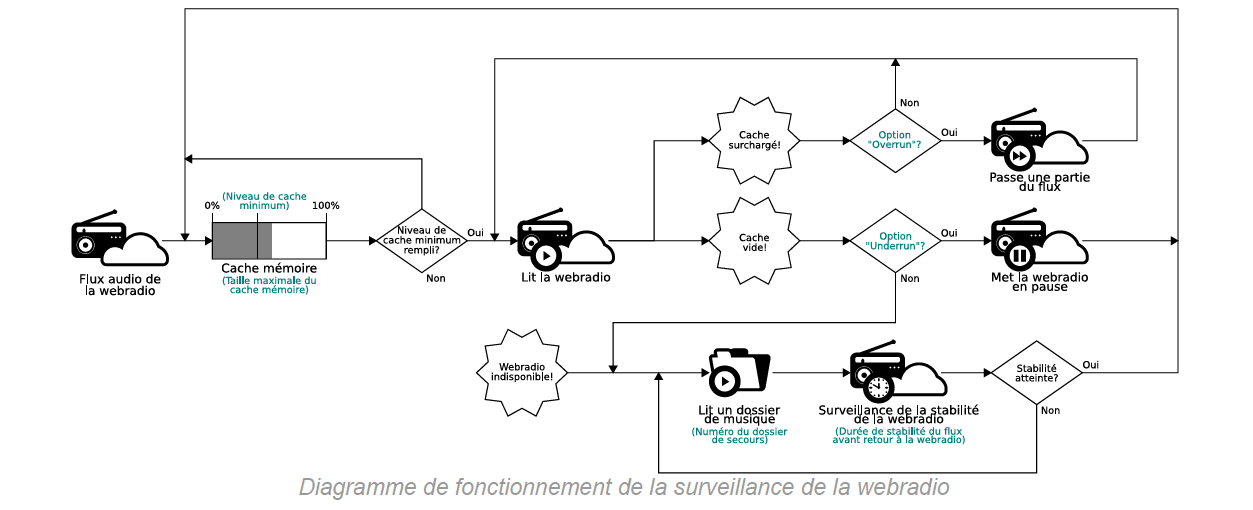
Note: The fallback music folder is played exclusively in random mode, without the option to reset the playback history. If the configured fallback music folder is empty, the monitoring function will not play anything until the stability period has been reached.
Web radio monitoring is configured using the following parameters:
- Without stream, play folder: Sets the number of the music folder played when the web radio stream is lost. From 001 to 999 (MUS001 to MUS999). Default value: 001.
- Time to switch back to the web radio: Sets how long the audio stream must remain stable before web radio playback starts. Default value: 20 seconds.
- Cache size (32 to 10240 kB): Sets the total size of the web radio cache, from 32 to 10240 kB. Default value: 320 kB.
- Minimum cache level (0 to 99%): Sets the minimum percentage of the cache that must be filled before web radio playback resumes, from 0 to 99%. Default value: 20%.
- Automatically pause playback in case of cache underrun: Enables or disables the pause of web radio playback when the cache is empty, instead of switching to a fallback music folder. Disabled by default.
- Automatically skip a part of the cache in case of overrun: Enables or disables the skipping of part of the received web radio stream when the web radio server overloads the cache. Disabled by default.
Configure web radios
| Method | Procedure |
|---|---|
| Web browser | Go to For web radio monitoring:
For each web radio preset:
Click Save at the bottom of the page. |
Configuration file (system.ini) | See Settings of the Parameters with the “system.ini” File (page 63). |
Was this article helpful?
That’s Great!
Thank you for your feedback
Sorry! We couldn't be helpful
Thank you for your feedback
Feedback sent
We appreciate your effort and will try to fix the article