All files and folders on the Main Media, including audio content, playlists and Scheduler files, can be added, deleted, renamed or moved using different methods. The most suitable method depends on how the player is used.
TABLE OF CONTENTS
- Choose an update method
- Connect the Main Media to a computer
- Connect the player to a computer as a USB device
- Use the embedded FTP server
- Use the embedded Samba server
- Synchronize with an FTP server
- Use a copy script with an FTP server
- Use a copy script with a removable storage device
- Configure FTP clients
Choose an update method
The table compares the available methods using the following criteria:
- Network: The network access required by the player: none, local network (LAN), or remote access via the internet.
- On-site operation: Whether the player must be handled locally.
- Scheduler: Whether the content update can be scheduled.
- Deployment: The expected scale of the number of players to update.
- Skills: The level of skill required of the provider to prepare and deploy a content update.
| Method | Network | On-site operation | Scheduler | Deployment | Skills |
|---|---|---|---|---|---|
| Main Media connected to a computer | None | Yes | No | Small | Basic |
| Player connected to a computer as a USB device | None | Yes | No | Small | Basic |
| Embedded FTP server | Local or remote | No | No | Small or medium | Intermediate |
| Embedded Samba server | Local | No | No | Small or medium | Intermediate |
| Synchronization with a remote FTP server | Local or remote | No (or yes)* | Yes | Small, medium or large | Intermediate |
| Copy script with a remote FTP server | Local or remote | No (or yes)* | Yes | Small, medium or large | Advanced |
| Copy script with a removable storage device | None | Yes | No | Small, medium or large | Advanced |
* If Scheduler is not used, the content update can be started from the embedded website or from the player’s front-panel user interface.
Connect the Main Media to a computer
Manage the content directly on the Main Media storage device connected to a computer.

Requirements
- A computer with a USB host port, or an SD memory card reader for My Music Player.
- The computer operating system’s file explorer.
Recommended use
This method is recommended when the user updates the player directly, or when preparation and maintenance are performed one player at a time.
Advantages:
- Easy to implement.
- Recommended for on-site maintenance.
- Recommended when the user manages content directly.
Limitations:
- Not recommended for managing more than one player.
- Not recommended when the Main Media is connected to an internal connector on the player (My Music Player only).
- Requires on-site handling.
- Requires playback to be stopped.
Procedure
- Turn off the player.
- Remove the Main Media from the player.
- Connect the Main Media to a USB host port on the computer.
- Use the file explorer to update the Main Media content.
- Eject and remove the Main Media using the computer operating system’s eject procedure.
- Insert the Main Media into its connector on the player.
- Turn on the player.
Connect the player to a computer as a USB device
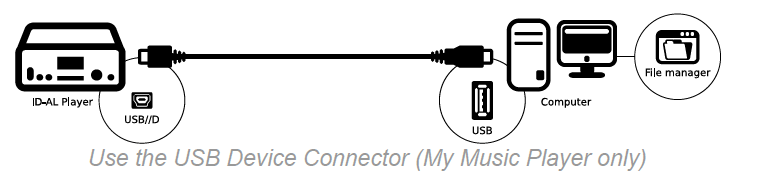
My Music Player only. This method manages the Main Media content by connecting the player to a computer as a USB device.
Requirements
- A computer with a USB host port.
- A USB Mini-B to Type-A cable.
- The computer operating system’s file explorer.
Recommended use
This method is recommended when the user updates the player directly, or when preparation and maintenance are performed one player at a time.
Advantages:
- Easy to implement.
- Recommended for on-site maintenance and direct content management by the user.
- Recommended when the Main Media is connected to an internal connector.
Limitations:
- Not recommended for managing more than one player.
- Requires on-site handling.
- The distance between the player and the computer depends on the length of the USB cable.
Procedure
- Connect the player to the computer using the appropriate USB cable.
- In the front-panel Advanced menu, select
ADMINISTRATOR → USB DEVICE MODE → PRESS TO CONNECT. - The Main Media appears in the file explorer as a standard storage device. Its name depends on the connector used by the Main Media.
- Use the file explorer to update the Main Media content.
- Eject the Main Media using the computer operating system’s eject procedure.
- In the front-panel Advanced menu, select
ADMINISTRATOR → USB DEVICE MODE → PRESS TO EXIT. - Disconnect the USB cable between the player and the computer.
Use the embedded FTP server
Manage the Main Media content over a local or remote network using a computer and FTP client software.

Requirements
- A computer and FTP client software, such as FileZilla Client.
- For a local update: access to the player over the local network (LAN).
- For a remote update: internet access to the player.
Recommended use
This method is recommended for remote updates over a local network or the internet, one player at a time, or for a group of players using an FTP batch-processing tool.
Advantages:
- Recommended for off-site maintenance and remote content management by a content provider.
- Recommended when the Main Media uses an internal connector (My Music Player only).
- Suitable for managing one or several players.
- Allows the choice of FTP tools used to update the content.
Limitations:
- Requires basic networking skills.
- Scheduler cannot be used to perform the content update.
- Some network administration policies do not allow access by an external FTP client.
- A SATA-connected hard drive is not properly supported by the player’s FTP function (My Music Player HW V1.0 only).
- Managing many players may require advanced knowledge of the FTP client tools, including batch processing, scheduling and content synchronization.
Procedure
FTP client software varies, but the general procedure is as follows:
- Make sure the player is connected and accessible over the network.
- Start the FTP client on a computer.
- Enter the connection Host:
- Over a LAN or VPN: enter the player’s network address, such as
mmp-8b0aor192.168.0.104. - Over the internet through a router connected to the player: enter the router’s IP address, or a domain name if DynDNS is used.
- Over a LAN or VPN: enter the player’s network address, such as
- Enter port 21, the port of the player’s FTP server. When accessing the player through an internet router, NAT/PAT configuration may change the port number.
- Enter the embedded FTP server Username. The default is
ftp. - Enter the embedded FTP server Password. The default is
ftp. - Limit the number of simultaneous connections to a maximum of 10.
- Connect to the embedded FTP server. The client displays folders representing the storage devices connected to the player. Each folder name contains the connector name and the device mount point, such as
:1.0-scsi-0:0:0:0-part1or:part1.- On My Music Player:
usb-extis the external USB host port,usb-intthe internal USB host port,sdthe SD/SDHC card slot, andsata-hddthe internal SATA connector (HW V1.0 only). - On My Music Player LE, the connector name is
usb.
- On My Music Player:
- Open the folder corresponding to the Main Media connector, for example
usb-int:1.0-scsi-0:0:0:0-part1orusb:1.0-scsi-0:0:0:0-part1. - Use the FTP client’s file explorer to update the Main Media content.
- When the update is complete, disconnect the FTP client from the player’s embedded FTP server.
Use the embedded Samba server
Manage Main Media content over a local network using a computer and the Samba client in its file explorer.

Requirements
- A computer with a file explorer that can be used as a Samba client.
- Access to the player over the local network (LAN).
Recommended use
This method is recommended for updating players remotely over a local network, one player at a time.
Advantages:
- Easy to use.
- Recommended for off-site maintenance and direct content management by the user.
- Recommended when the Main Media uses an internal connector (My Music Player only).
- Suitable for managing one or several players on the same network.
Limitations:
- Limited to a local network (LAN).
- Scheduler cannot be used to perform the content update.
- Not recommended for managing a large number of players.
- A SATA-connected hard drive is not properly supported by the player’s FTP function (My Music Player HW V1.0 only).
- Managing many players may require advanced knowledge of Samba client tools, including batch processing, scheduling and content synchronization.
Procedure
Samba client operation varies between operating systems, but the general procedure is as follows:
- Make sure the player is connected and accessible over the network.
- Open the computer’s file explorer and select Network.
- If necessary, select the player’s workgroup. The default is
WORKGROUP. - Select the player’s NetBIOS name from the available network devices, for example
MMP8B0Afor a default factory name orPlayerSMBfor a custom name. - Open the
medianetwork folder. - Enter the embedded Samba server username. No username is predefined; one must be added to use Samba.
- Enter the embedded Samba server password. No password is predefined; one must be added to use Samba.
- Connect to the player’s embedded Samba server. The file explorer displays folders representing the connected storage devices. Each name contains the connector name and the device mount point, such as
:1.0-scsi-0:0:0:0-part1or:part1.- On My Music Player:
USB-EXTis the external USB host port,USB-INTthe internal USB host port,sdthe SD/SDHC card slot, andSATA-HDDthe internal SATA connector (HW V1.0 only). - On My Music Player LE, the connector name is
usb.
- On My Music Player:
- If the full device name is too long, the Samba server displays a shortened, slightly altered version.
- Open the folder corresponding to the Main Media connector, for example
USB-IN~Lorsd-part1. - Use the file explorer to update the Main Media content.
- When the update is complete, close the file explorer.
Synchronize with an FTP server
Manage Main Media content over a local or remote network by synchronizing the player’s content with an FTP server. Synchronization can be started manually or scheduled using Scheduler.

Requirements
- A computer, server or network service provider supplying an FTP server.
- For a local update: access to the player over the LAN.
- For a remote update: internet access to the player.
- For an automatic update: a
scheduler.tm3file scheduling FTP synchronization between the player and the content server.
Recommended use
This method is recommended for remote updates over a LAN or the internet, for a small or large number of players, with or without scheduling.
Advantages:
- Recommended for off-site maintenance and updates scheduled with Scheduler.
- Recommended for remote content management by a content provider and for managing one or several players.
- Recommended when the Main Media uses an internal connector (My Music Player only).
- Update content is easy to prepare.
- Unscheduled updates can be started from the front-panel Advanced menu on site or from the player’s web server over the network.
- Easy to deploy where network access policies are highly restrictive.
Limitations:
- Requires basic networking skills.
- Manually starting an unscheduled update requires basic operator skills.
- A SATA-connected hard drive is not properly supported by the FTP function (My Music Player HW V1.0 only).
- Providing different content for each player requires more space on the content server.
Procedure
- Make sure the player is connected and accessible over the network.
- Configure the FTP client to be used.
- Start the update through the selected FTP client using one of the following methods:
- Advanced menu:
ADMINISTRATOR → UPDATE FTP NOW→ Select a preset number from 01 to 10 → AtFTP (preset number) SURE?, selectYES. - Web browser: On the
FTP Clientpage, clickLaunch Presetin the selected preset. - Scheduler: Add an
FTP UPDATEcommand to an event, with a preset number from 1 to 10. - RS-232: See the RS-232 serial protocol.
- Advanced menu:
Use a copy script with an FTP server
Manage Main Media content over a local or remote network using a copy script from an FTP server. The script can be executed manually or scheduled using Scheduler.

Requirements
- A computer, server or network service provider supplying an FTP server.
- A copy script file (
script.txt) on the FTP server. - Optionally, ZIP-compatible compression software to compress and protect the script and update content in a ZIP file.
- For a local update: access to the player over the LAN.
- For a remote update: internet access to the player.
- For an automatic update: a
scheduler.tm3file scheduling execution of the copy script from the content server.
Recommended use
This method is recommended for remote updates over a LAN or the internet, for a small or large number of players, with or without scheduling.
Advantages:
- Recommended for off-site maintenance and updates scheduled with Scheduler.
- Recommended for remote content management by a content provider and for managing one or several players.
- Recommended when the Main Media uses an internal connector (My Music Player only).
- Unscheduled updates can be started from the front-panel Advanced menu on site or from the player’s web server over the network.
- Easy to deploy where network access policies are highly restrictive.
- Recommended for targeted content updates.
Limitations:
- Requires basic networking and copy-script skills.
- Writing a copy script requires knowledge of the exact Main Media content.
- Manually starting an unscheduled update requires basic operator skills.
- A SATA-connected hard drive is not properly supported by the FTP function (My Music Player HW V1.0 only).
Procedure
- Make sure the player is connected and accessible over the network.
- Configure the FTP client to be used.
- On the FTP server, copy the script file (
script.txt) and update content, or a ZIP file containing both (script.zip), to the root of the folder specified in the selected FTP client’s Source folder field. - Start the update through the selected FTP client using one of the following methods:
- Advanced menu:
ADMINISTRATOR → UPDATE FTP NOW→ Select a preset number from 01 to 10 → AtFTP (preset number) SURE?, selectYES. - Web browser: On the
FTP Clientpage, clickLaunch Presetin the selected preset. - Scheduler: Add an
FTP UPDATEcommand to an event, with a preset number from 1 to 10. - RS-232: See the RS-232 serial protocol.
- Advanced menu:
Use a copy script with a removable storage device
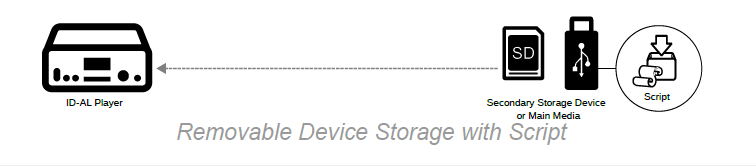
Manage Main Media content using a copy script and update content stored on a separate storage device. The script is executed when the player starts with that storage device connected.
Requirements
- A computer with a text editor to prepare the copy script.
- A separate storage device containing the copy script and update content.
- Optionally, ZIP-compatible compression software to compress and protect the script and update content in a ZIP file.
Recommended use
This method is recommended when content is supplied remotely to a player without network access, or when preparation and maintenance are performed one player at a time.
Advantages:
- Recommended for on-site maintenance and remote content management by a content provider.
- Recommended for players that cannot be accessed over the network.
- Recommended when the Main Media uses an internal connector (My Music Player only).
- Easy to deploy where network access policies are highly restrictive.
- Suitable for managing one or several players.
Limitations:
- Requires basic copy-script skills and on-site handling.
- Writing a copy script requires knowledge of the exact Main Media content.
- Requires a separate storage device.
- Requires playback to be stopped.
Procedure
- On a computer, prepare the separate storage device, such as a USB flash drive or SD memory card:
- Format the storage device.
- Copy the script file (
script.txt) and update content to the device, or copy a ZIP file containing both (script.zip). - Eject and remove the device using the computer operating system’s eject procedure.
- Turn off the player.
- Insert the storage device into an available connector that is not used by the Main Media.
- Turn on the player. Startup takes the time required to execute all commands in the copy script.
- When the player has finished starting, disconnect the storage device.
Note: The Main Media can be used instead of a separate storage device. However, all files required by the copy script must then be deleted manually after the update.
Configure FTP clients
FTP client configuration is required when Main Media content is managed using the player’s FTP client function, either in FTP synchronization mode or copy script mode. Configuration consists of:
- General parameters defining the operating rules shared by all FTP servers used by the FTP client function.
- Ten FTP client settings called presets, defining how different FTP servers are accessed. Several presets can access different folders on the same server. For example, preset 1 can use
Host = ftp.MyServer.comandSource folder = Song/, while preset 2 uses the same host andSource folder = Advertising/. A preset can use synchronization mode (Sync.) or copy script mode (Script). In synchronization mode,Advanced Sync. optionscan include or exclude files and folders.
Procedure
The player must be connected and accessible over the network.
- In a web browser, connect to the player’s web server with administrator rights.
- Click FTP Client.
- Under FTP General Parameters, adjust the settings to match the FTP servers used:
Parameter Description Waiting time before reconnecting Sets the waiting time before reconnecting the player to the FTP server after a connection interruption. Number of attempts Sets the number of FTP server connection attempts before ending the update operation. Passive mode Enables or disables passive connection mode. Usually disabled. - Configure the required FTP client presets. Each FTP client represents an individual connection to a specified FTP server folder.
Setting Description Name Sets an arbitrary name for the FTP client, for example “My Company FTP”. Host Sets the FTP server URL or IP address, for example ftp.mycompany.comor192.168.100.10.Port Sets the FTP server connection port, usually port 21. Username Sets the username for FTP server access. Password Sets the password for FTP server access. Source folder Sets the path on the FTP server from which the update is performed, for example data/MyPlayer/.Sync. Sets the content update to FTP synchronization mode. Script Sets the content update to copy script mode. Advanced Sync. options By default, FTP synchronization updates content by synchronizing all server files and folders with the player, starting from the path defined by Source folder. Select Advanced Sync. options to include or exclude specific server files and folders from synchronization with the player. Sync. included folders/files Defines the files and folders to include in FTP synchronization. Each path is relative to Source folder. Only listed files and folders are synchronized; other files and folders are ignored on both the player and server. Paths are enclosed in quotation marks and separated by spaces, for example “MUSIC/” “PLAYLIST/PLS002 – Jazz/” “SPOT/” “SYSTEM/scheduler.tm3”. If this field is empty, all server files and folders are synchronized with the player.Sync. excluded folders/files Defines the files and folders to exclude from FTP synchronization. Each path is relative to Source folder. Listed files and folders are ignored during synchronization. Paths are enclosed in quotation marks and separated by spaces, for example “MUSIC/MUS001 – Classic/” “SPOT/SPT005 2016” “PLAYLIST/PLS002 – Jazz/50s Sound.m3u”.A folder path consists of folder names separated by slashes (
/). It always ends with a slash and never starts with one, for exampledata/orMUSIC/MUS001 Classic/Mozart/. A file path consists of its folder path, name and extension, for exampleSYSTEM/scheduler.tm3.Example 1: without inclusion or exclusion options
Source folder:
data/MyPlayer/
[ ] Advanced sync.optionsIn this example, FTP synchronization reproduces the exact content of the FTP server’s
data/MyPlayer/folder on the player.Example 2: with inclusion and exclusion options
Source folder:
data/MyPlayer/
[x] Advanced sync.options
Sync. included folders/files:“MUSIC/” “SPOT/” “SYSTEM/scheduler.tm3”
Sync. excluded folders/files:“SPOT/SPT005 2016” “MUSIC/MUS001 Classic/”In this example, FTP synchronization reproduces the exact content of the
MUSICandSPOTfolders and thescheduler.tm3file fromSYSTEMon the player. TheSPT005 2016subfolder ofSPOTand theMUS001 Classicsubfolder ofMUSICare ignored.Clear Preset deletes an FTP client’s settings. Launch Preset starts the content update from the server specified by that FTP client.
- Click Save at the bottom of the page.
Was this article helpful?
That’s Great!
Thank you for your feedback
Sorry! We couldn't be helpful
Thank you for your feedback
Feedback sent
We appreciate your effort and will try to fix the article