The "Edit Calendar" section allows you to add typical days to the calendar.
Start by selecting the "Edit Calendar" view, click Show the "Edit Calendar" mode (Alt+2).
The calendar displays the dates of a full year; the calendar is divided into 12 months, and each column of a month represents the day of the week.
Selecting Date(s) in the Calendar
Selecting date(s) in the calendar allows you to perform different operations of adding, deleting, and replacing typical days in the calendar.
- When a date is empty, it appears in white.
- When a date is empty and selected, it appears in gray.
- When a date contains an instance of a typical day, it appears in the same color as the typical day.
- When a date contains an instance of a typical day and is selected, it appears in the same color as the typical day but grayed out.
The calendar allows you to make multiple date selections. Here are the different possible cases:
- Single date selection: click on the date you want to select; the date is selected.
- Week selection: click on the desired day of the week; all days of the week are selected.
- Month selection: click on the desired month; all dates of the month are selected.
- Multiple consecutive dates selection: hold down the Shift key on your keyboard, click on the first date you want to select, click on the last date you want to select; all dates between the first and last clicked dates are selected.
- Multiple non-consecutive dates selection: hold down the Ctrl key on your keyboard, click one by one on the dates you want to select; all clicked dates are selected.
Select dates with the Select/Delete/Add tool
The tool can select multiple dates according to repeat criteria.
- Click “Select/Delete/Add Dates” in the calendar, or press Ctrl+Alt+D.
- Choose a repeat criterion: every day, every X days, selected weekdays, or the same day number each month.
- Set the date range and choose whether the operation applies to every month or only to selected months.
- Enable “Select date(s)”.
- Click OK. Dates matching the criteria are selected in the calendar.
Adding a Typical Day to the Calendar
There are several methods to add a typical day to the calendar.
Method 1 - Using the "Insert the Selected Typical Day into the Selected Date(s) of the Calendar" Command from the List of Typical Days:
- Select a typical day from the list of typical days.
- Select one or more dates in the calendar (see "Selecting Date(s) in the Calendar").
- Click the Insert the Selected Typical Day into the Selected Date(s) of the Calendar (Ctrl+Alt+T) button from the list of typical days. An instance of the selected typical day is added to each selected date in the calendar.
Method 2 - By Drag-and-Drop of the Typical Day onto the Calendar:
- Select one or more dates in the calendar (see "Selecting Date(s) in the Calendar").
- Drag and drop a typical day from the list of typical days onto any selected date. An instance of the selected typical day is added to each selected date in the calendar.
Note: If you do not wish to insert a typical day on a single date, you can skip step 2.
Method 3 - Using the "Date Selection/Deletion/Add Tool" Command from the Calendar:
The "Date Selection/Deletion/Add" tool allows you to insert a typical day into the calendar on many dates with elaborate repetition modes.
- Click the Date Selection/Deletion/Add Tool (Ctrl+Alt+D) button in the calendar. The "Date Selection/Deletion/Add" dialog box appears.
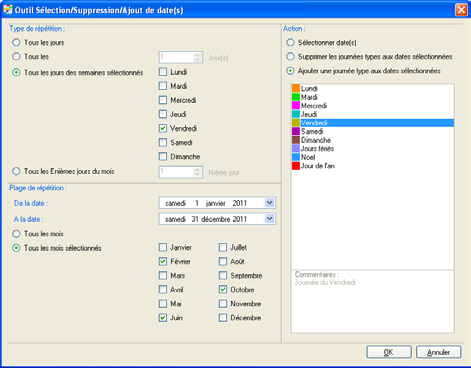
- Select the repetition interval for the typical day to be inserted into the calendar.
- Every day: the typical day is inserted every day.
- Every X day(s): the typical day is repeated every X days. The repetition value in number of days is defined in the "Day(s)" field.
- All days of selected weeks: the typical day is inserted every day of the selected weeks. The selection of weeks is done using the checkboxes Monday, Tuesday, Wednesday, Thursday, Friday, Saturday, and Sunday.
- All Nth days of the month: the typical day is inserted on the same date of each month. The date of the month is defined in the "Nth Day" field.
- Select the date range in which the repeated insertion of the typical day should occur.
- From the date: the date from which the typical day is inserted. The date is defined in the "From the Date" field.
- To the date: the date from which the insertion of the typical day stops. The date is defined in the "To the Date" field.
- Every month: the typical day is inserted every month.
- Selected months: the typical day is inserted every month of the selected year. The selection of months is done using the checkboxes January, February, March, April, May, June, July, August, September, October, November, December.
Note: The start date of the repetition range must be earlier than the end date of the repetition range.
- Activate the Add a Typical Day to the Selected Dates checkbox.
- Select the day you want to add from the list of typical days.
- Click OK. An instance of the selected typical day is added to each selected date in the calendar.
Move or copy a day template already placed in the calendar
- Drag a day template from its calendar date to another date to move it.
- Hold Ctrl while dragging to copy it to another date or to the selected calendar dates.
Deleting One or More Typical Day(s) from the Calendar
There are several methods to delete typical days from the calendar.
Method 1 - Using the "Delete Selected Date(s)" Command from the Calendar:
- Select one or more dates in the calendar (see "Selecting Date(s) in the Calendar").
- Click the Delete Selected Date(s) (Del) button in the calendar. All instances of typical days from the selected dates are deleted from the calendar.
Method 2 - Using the "Date Selection/Deletion/Add Tool" Command from the Calendar:
The "Date Selection/Deletion/Add" tool allows you to delete instances of typical days from the calendar on many dates with elaborate repetition modes.
- Click the Date Selection/Deletion/Add Tool (Ctrl+Alt+D) button in the calendar. The "Date Selection/Deletion/Add" dialog box appears.
- Select the repetition interval for the deletion of dates in the calendar.
- Every day: all days will be deleted.
- Every X day(s): the deletion is repeated every X days. The repetition value in number of days is defined in the "Day(s)" field.
- All days of selected weeks: the deletion is repeated every day of the selected weeks. The selection of weeks is done using the checkboxes Monday, Tuesday, Wednesday, Thursday, Friday, Saturday, and Sunday.
- All Nth days of the month: the deletion is repeated on the same date of each month. The date of the month is defined in the "Nth Day" field.
- Select the date range in which the repeated deletion should occur.
- From the date: the date from which the deletion starts. The date is defined in the "From the Date" field.
- To the date: the date from which the deletion stops. The date is defined in the "To the Date" field.
- Every month: the deletion is applied every month.
- Selected months: the deletion is applied every month of the selected year. The selection of months is done using the checkboxes January, February, March, April, May, June, July, August, September, October, November, December.
Note: The start date of the repetition range must be earlier than the end date of the repetition range.
- Activate the Delete Typical Days at the Selected Dates checkbox.
- Click OK. The instances of typical days are deleted from each selected date in the calendar.
Was this article helpful?
That’s Great!
Thank you for your feedback
Sorry! We couldn't be helpful
Thank you for your feedback
Feedback sent
We appreciate your effort and will try to fix the article