After creating a project or opening an existing project, the next step is to add a typical day to the project. The "Typical Days" section allows you to add a typical day to your project.
Adding a Typical Day
- In the "Typical Days" section, click the Add a Typical Day (Ctrl+T) button. The "New Typical Day" dialog box appears.
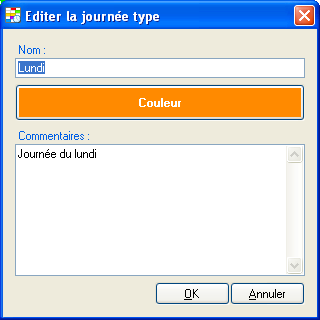
- Type the name of your typical day in the Name field.
Note: Two typical days cannot have the same name. - Click the Color button. The "Colors" dialog box appears. Define a display color specific to your typical day, then click
OK.Tip: Although modifying the color of your typical day is optional, it is strongly recommended to use a distinct color for each typical day in your project to more easily identify them in the calendar.
- Type the identifying and describing information for your typical day in the Comments field.
Note: Projects intended for the Event Player do not have this option. - Click OK.
Deleting a Typical Day
- Select a typical day from the list of typical days. The typical day will then appear highlighted.
- Click the Delete the Selected Typical Day (Ctrl+Del) button.
Note: All existing instances of the typical day in the calendar will also be deleted from the calendar.
Editing a Typical Day
- Select a typical day from the list of typical days. The typical day will then appear highlighted.
- Click the Edit the Selected Typical Day (Ctrl+Shift+T) button. The "Edit Typical Day" dialog box appears.
- Modify the fields you wish to redefine.
- Click OK.
Rearrange or copy a day template
- To change a day template’s position in the list, drag it to its new position.
- To create a copy of a day template, hold Ctrl while dragging the day template within the list.
Was this article helpful?
That’s Great!
Thank you for your feedback
Sorry! We couldn't be helpful
Thank you for your feedback
Feedback sent
We appreciate your effort and will try to fix the article