Adding Events to Tracks
To add events to a track:
- Select the track by clicking on its color in the left column.
- Position your cursor in one of the track’s time bars and right-click.
- A window appears, click on « Add Event ».
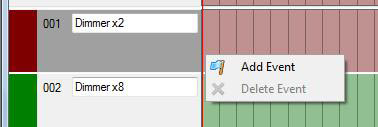
- A diamond appears at the selected location.
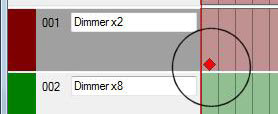
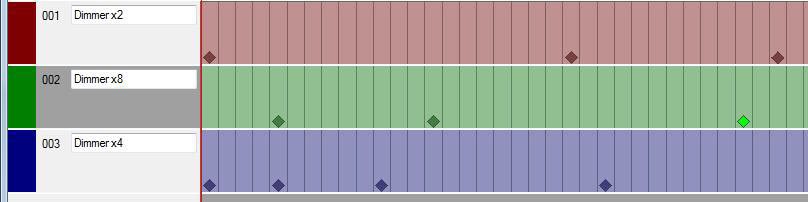
Add as many events as you like to the different tracks.
Note: Each event (diamond) corresponds to the state of the outputs at that moment.
Selecting and moving events
Show Control Editor lets you define a selection area across multiple tracks. Delete, Cut, Copy and Paste operations apply to the entire selection area.
- Drag the selection area header to move all events contained in the selection.
- Hold Ctrl while dragging to copy the events in the selection.
- An individual event can also be moved directly by dragging and dropping it.
- Hold Ctrl while dragging an event to copy it.
- Hold Shift and click on a track to extend the selection area to the selected position.
Inserting empty space
The Insert Empty Space function can add space to one or more tracks from the beginning of the project, the cursor position, a selected position on a track or the selection area.
Editing multiple events
Event editing functions can apply changes to the selected events, including:
- setting the maximum or minimum value;
- increasing or decreasing the value;
- changing the progression type.
Modifying Event Output Values
Each track represents one or more DMX channels, and each event represents one or more values at that moment.
By clicking on the diamond (event) of the track, you can view the values associated with that event at that moment at the bottom of the screen.
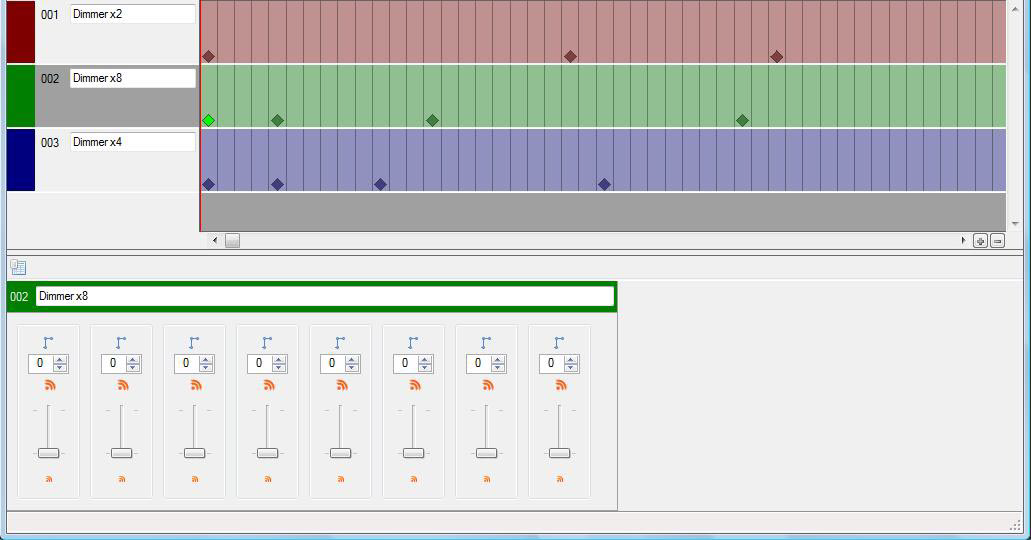
Each potentiometer corresponds to a channel.
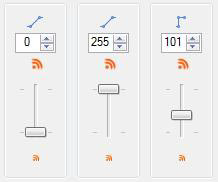
The output value of a DMX channel ranges from 0 to 255. You can choose your desired value by dynamically adjusting the potentiometer button.
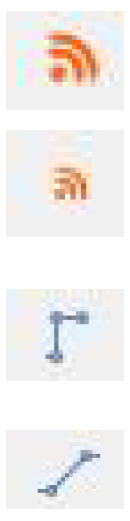
- Set the value to its maximum
- Set the value to its minimum
Set the progression mode. Immediate value change- Set the progression mode. Gradual value change from the previous point
By selecting the gradual mode, the output value evolves from the value of the previous point to the new value of the new point. This function can be used to achieve gradual lighting or dimming of a light, or to create movement from one position to another.
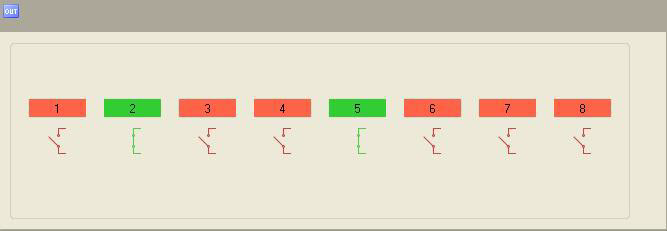
Modifying the 8-Output Track
The principle is identical for placing events. Click on the switch representation to open or close it.
Was this article helpful?
That’s Great!
Thank you for your feedback
Sorry! We couldn't be helpful
Thank you for your feedback
Feedback sent
We appreciate your effort and will try to fix the article