This menu provides access to the main settings of the player:
Ethernet
The player is factory-configured with the DHCP parameter. The AP420 uses a DHCP fallback function to assign its IPv4 address.
Refer to the chapter here to configure your static connection.
To find it, use IP scanner software such as Angry IP Scanner. You can also select a static IP address and define its parameters. This menu also displays the MAC address.
Wi-Fi
You can configure the Wi-Fi interface of the AP420 Wi-Fi or add a Wi-Fi dongle to the AP420 and configure it in this menu.
Date and Time
When connected to the Internet, the player updates the current time using the NTP protocol. This is the default setting.
With this menu, select your time zone. The date and time defined in this menu are propagated to all the player's interfaces. The calendar and programs never depend on your computer's time or your browser's time, but only on the player's time.
When the player is offline, it maintains its internal clock thanks to an embedded RTC (Real Time Clock) module. The RTC stability is 5 ppm over the temperature range [-40°C; +85°C], which gives a maximum drift of 2 minutes and 30 seconds per year. This module is powered by an internal rechargeable battery, which recharges when the player is connected to the mains and turned on.
Storage
By default, the player is configured to write from its internal 4 GB storage. After connecting a storage device to the USB or microSD ports, the dropdown menu displays these devices. You can select and format them from this interface.
System
Select this menu to perform the following actions:
- Restart,
- Shutdown,
- System update,
- Calendar cleanup.
The calendar cleanup is a procedure to delete all music and advertising programs from the calendar. This procedure does not affect the multimedia library.
User
This menu allows you to change the login password in administrator mode.
Wavespark
This menu allows you to configure the settings related to Wavespark. By default, the service status is disconnected. By selecting Add Player, the player will connect to the Wavespark cloud server and request a PIN identification code.
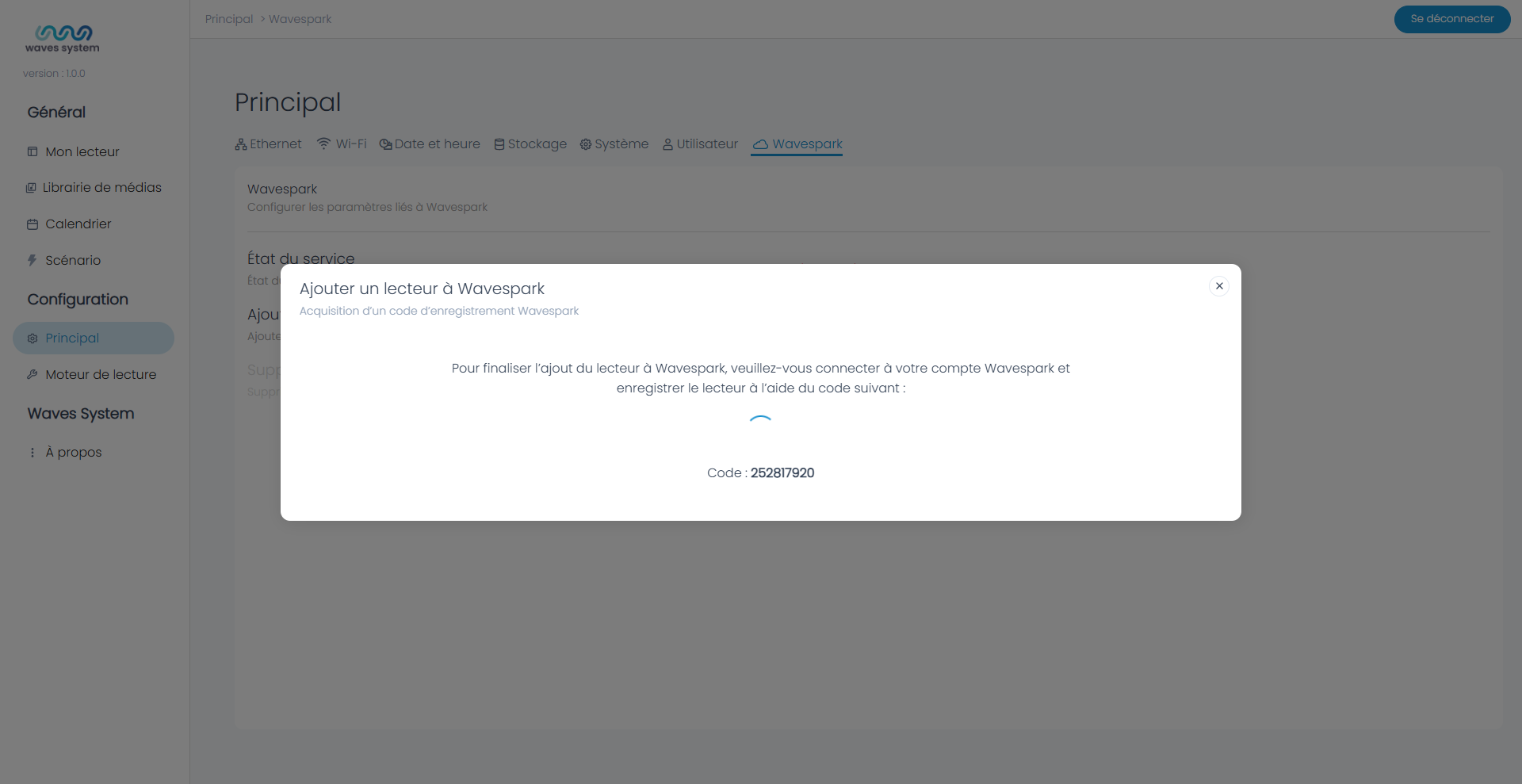
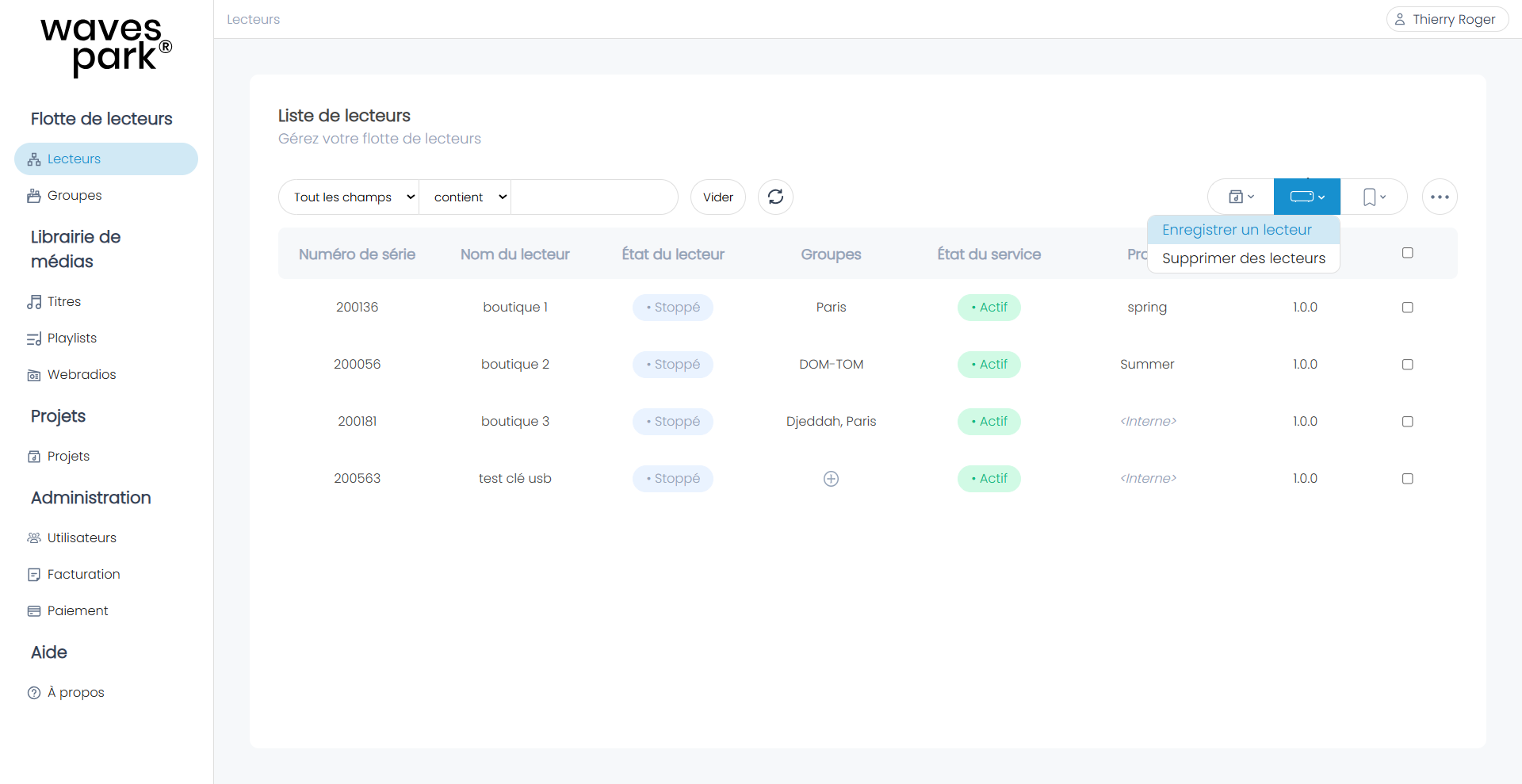
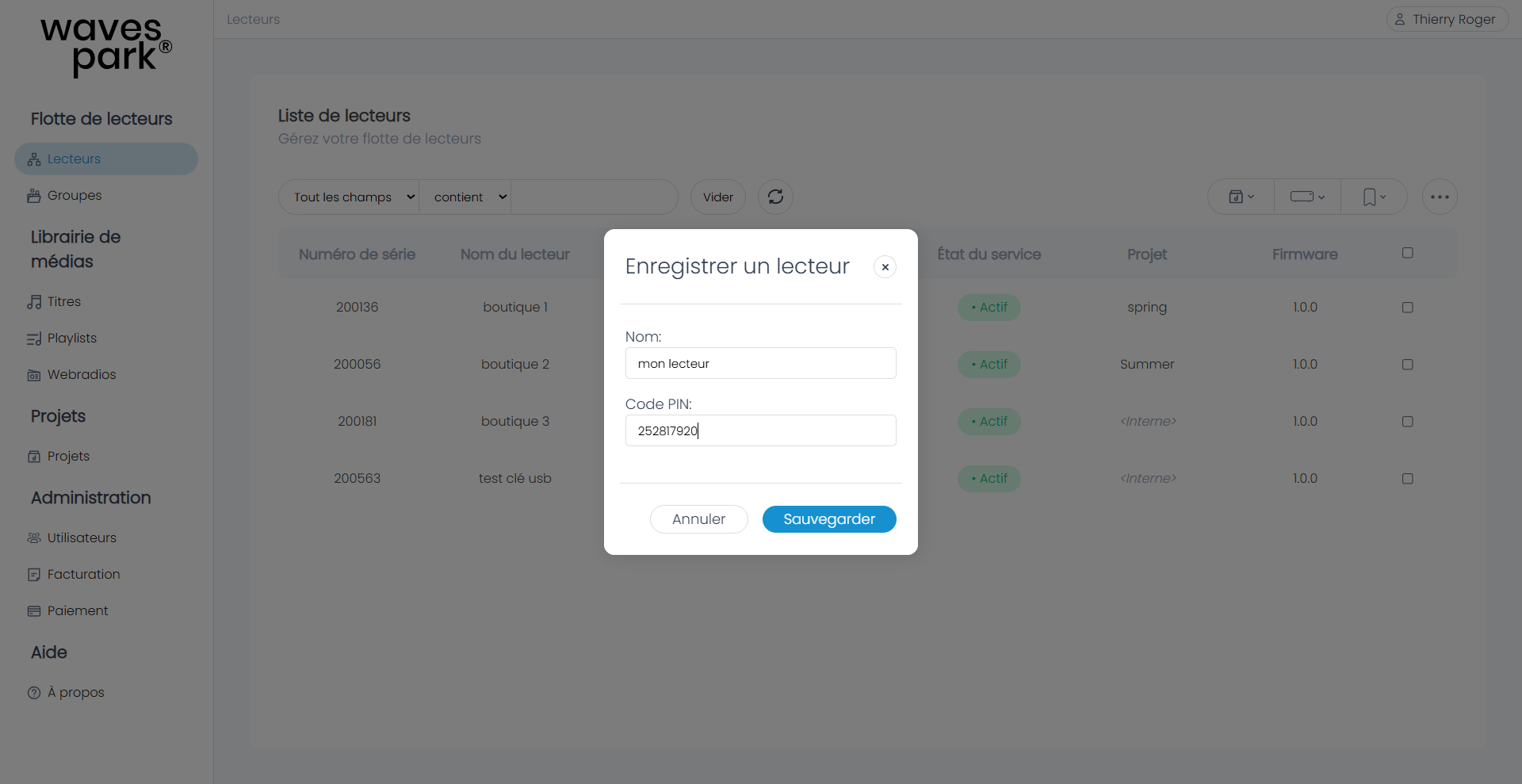
If Internet communication is functional, the PIN code appears. This code is valid for 15 minutes and must be copied and pasted into the Wavespark interface to pair the player with your Wavespark account. To do this, use the player icon and then save a player.
Was this article helpful?
That’s Great!
Thank you for your feedback
Sorry! We couldn't be helpful
Thank you for your feedback
Feedback sent
We appreciate your effort and will try to fix the article