The media library allows you to centralize all media used in music and announcement programs. It organizes files and playlists accessible via the calendar.
On AP420
To create a playlist on the player, you must first add titles via "+ Add" > Titles.
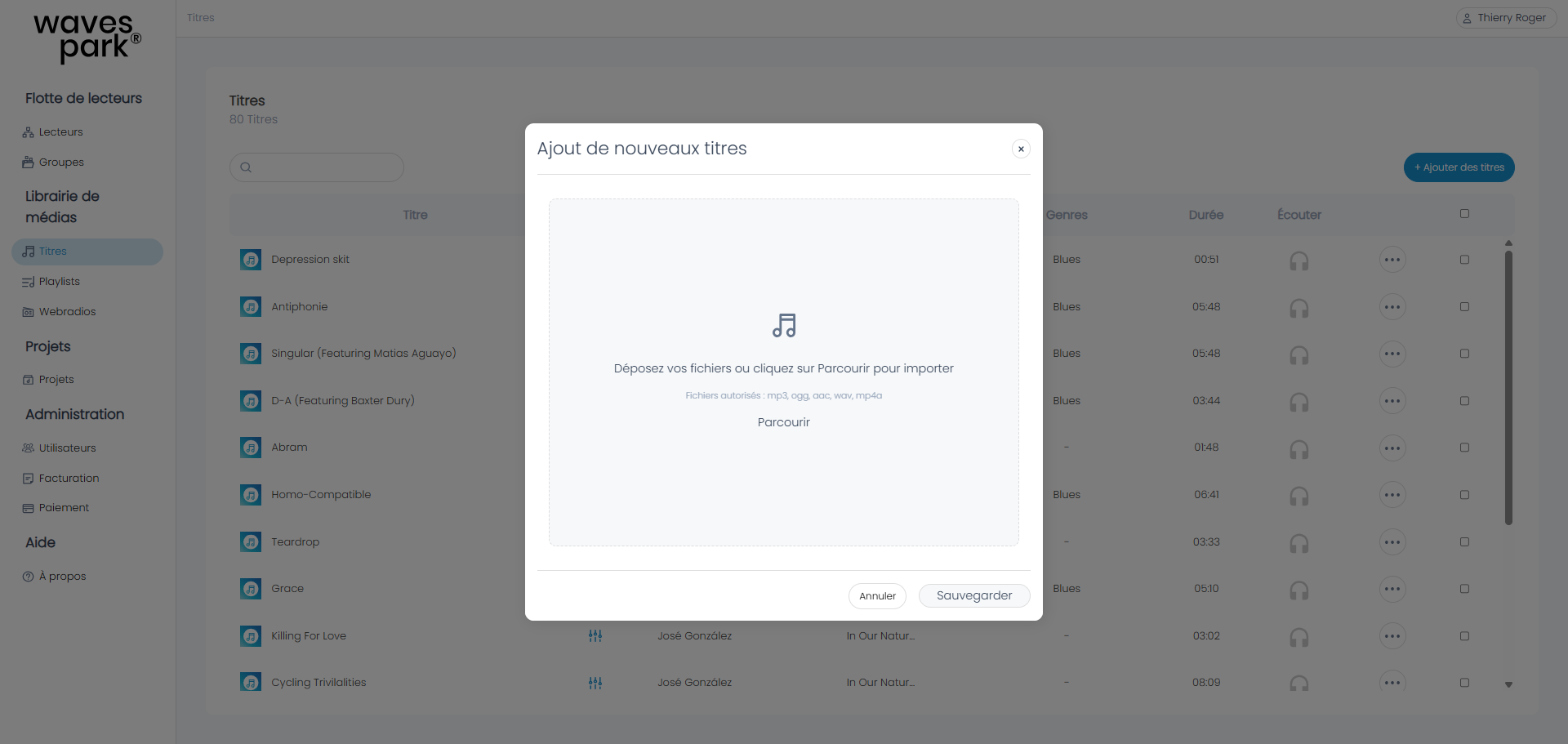
The interface allows you to import titles from your computer. Uploading titles through the interface will copy them to the player's database on the previously selected storage device.
Once the titles are uploaded, the list is updated.
Click the headphone icon to start playing the title in your browser.
Add titles, rename the playlist by clicking on the playlist name, and reorganize titles by dragging them up or down.
Note: The player does not read music stored on a USB drive, whether at the root or in a directory.
On Wavespark Audio
There are two ways to import titles into Wavespark:
You can do this from the Titles menu, just like on a player.
The Wavespark interface allows you to import multiple folders simultaneously.
- Click the headphone icon to start playing the title in your browser.
- Access metadata by clicking the three dots for each title.
You can also import titles directly from the Playlists menu as described here.
Was this article helpful?
That’s Great!
Thank you for your feedback
Sorry! We couldn't be helpful
Thank you for your feedback
Feedback sent
We appreciate your effort and will try to fix the article