TABLE OF CONTENTS
AP420
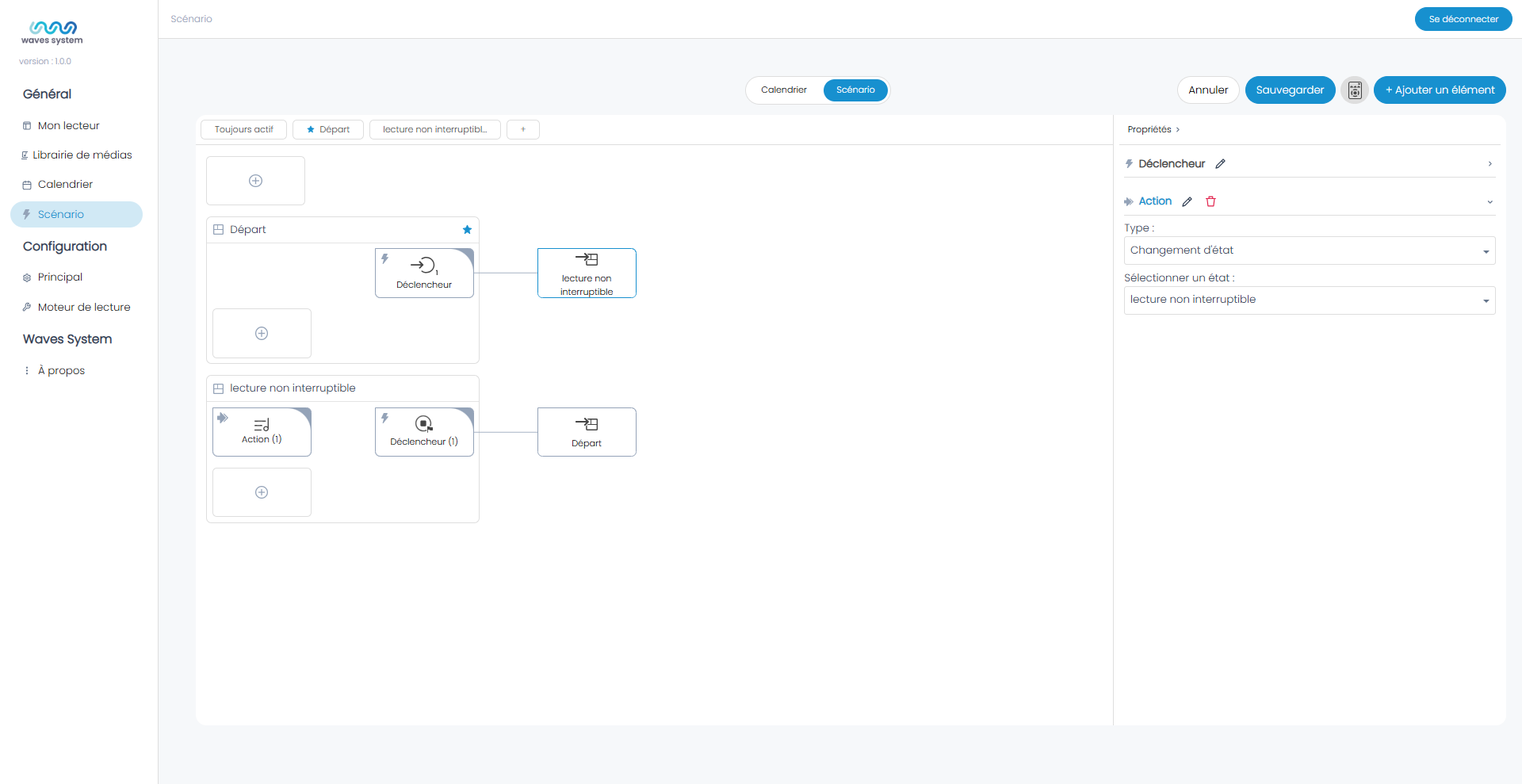
To create a non-interruptible trigger, start by creating a default State and place the trigger inside it. By placing it in a State, it is no longer "always active."
Click on + and select State. In the right menu, rename "New state" to "Default". The "Select a Default State" field will then display "Default".
Inside the "Default" State, click on + and select "Exit Trigger".
Click on Trigger and go to the Properties menu. Select Type: "Input Contact", then Input Number 1, and Trigger When: "Pressed".
Now, create a second State to play a playlist in a non-interruptible way.
At the top left, click + State and rename it "Non-Interruptible Playback".
Within this new State, click + and select Entry Action. Set the Type: "Content Playback" and choose your Playlist.
Within this second State, click + and select Exit Trigger. Set the trigger Type: "End of Playback" and the Action: "Change State to Default".
Finally, specify the action for exiting the "Default" State. Set the Type: "Change State" and select the "Non-Interruptible Playback" State.
Save the project.
Wavespark Audio
The Scenario is integrated with the calendar in "Projects". Once the project is created, go to the three dots and click "Edit Scenario".
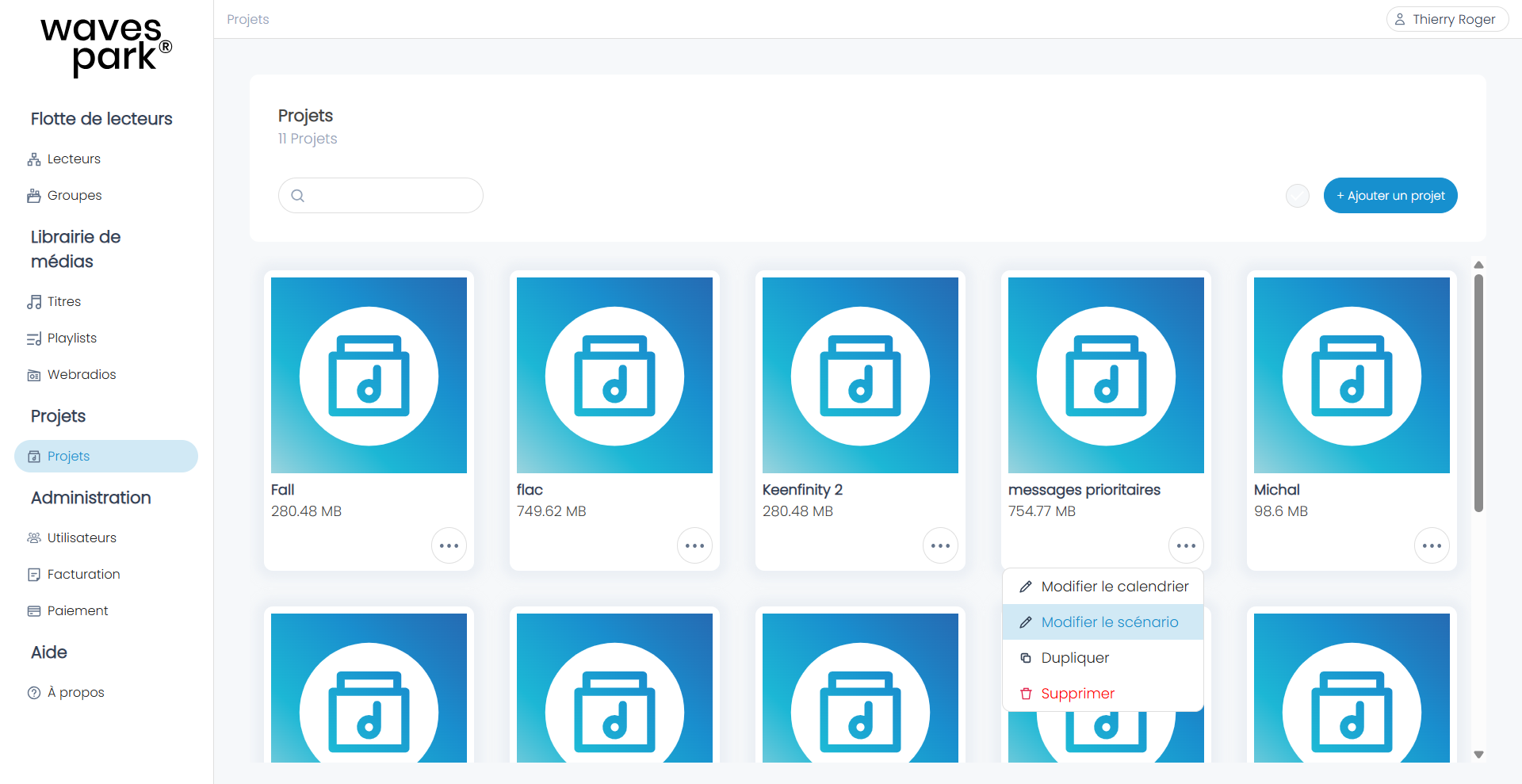
The interface is similar to that of a Player. You create your scenario within the project. Then, you will associate the project with the Player(s) in the Players view.
Was this article helpful?
That’s Great!
Thank you for your feedback
Sorry! We couldn't be helpful
Thank you for your feedback
Feedback sent
We appreciate your effort and will try to fix the article