Through its Ethernet connection, the EP220 and EP230 players can communicate remotely to update content via FTP (microSD card or USB flash drive), receive commands through an HTML web server, and monitor the player status or outputs.
The player can be used on a local network. With a properly configured modem/router, it can also be accessed remotely over the Internet.
On a local network, the player requires an IP address. This address is configured in the player's options menu. Once configured, the player can be accessed through its web server using a web browser, or through its FTP server using an FTP client such as FileZilla.
Note: The player does not support DHCP.
HTML Web Server
Open a web browser on your computer and enter the player's IP address (configured in the player's options menu). The login page should appear, prompting you to enter your username and password.
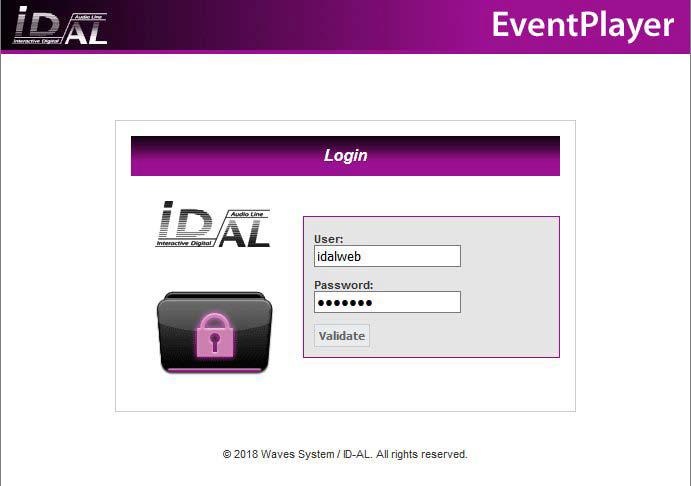
Default credentials:
- Username (user): idalweb
- Password: idalweb
You can change the username and password on the configuration page.
After entering your credentials and confirming, the main page is displayed.
The main page is divided into four sections:
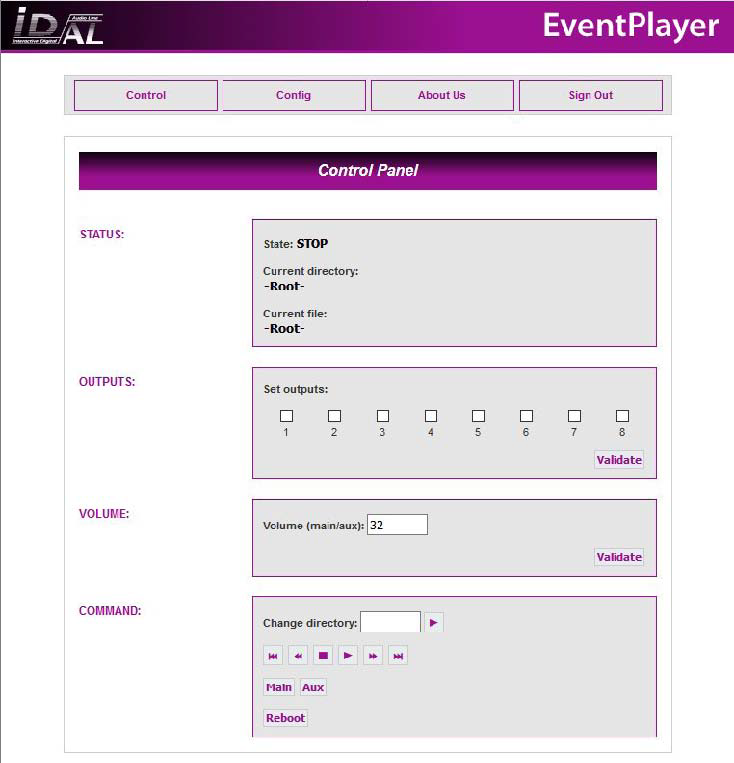
- Player Status
This section displays the player's status, the folder name, and the file currently being played.
- Output Status and Control
The checkboxes indicate the status of the output contacts and allow you to change their state. Select the outputs you want to activate, then click "Validate".
- Volume Control
This field displays the player's current volume level. To change the volume, enter a value and click "Validate".
- Commands
You can control the player using the transport buttons or by entering the number of a folder to play.
Configuration Page
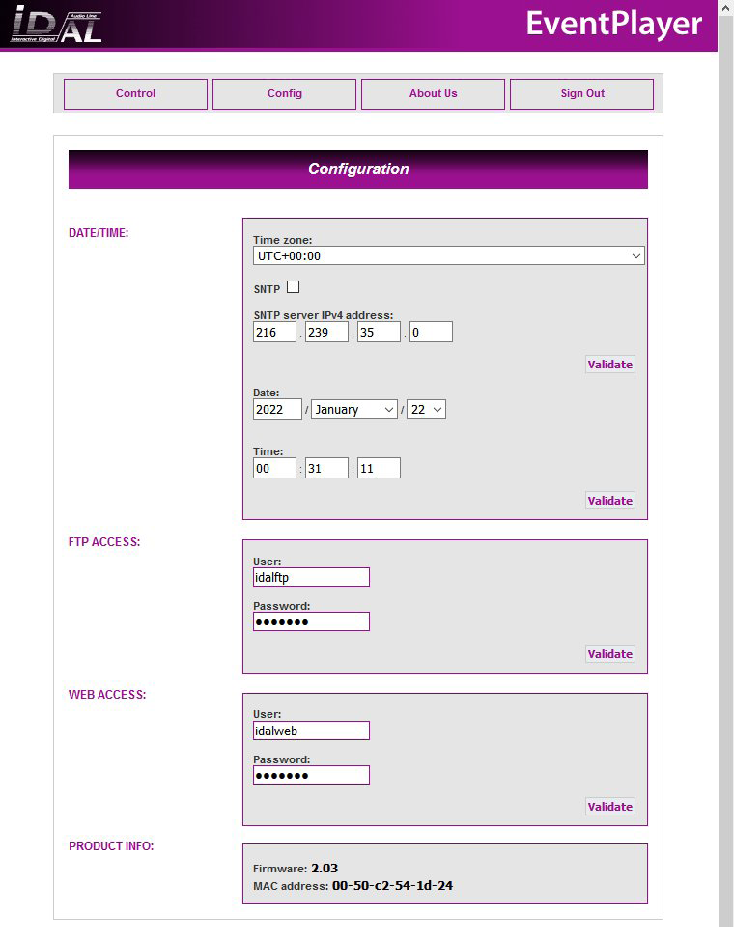
The "Config" page allows you to configure the player's settings. You can change the date and time, as well as the usernames and passwords used for Ethernet access.
Enter the information you want to change and click "Validate".
If you have lost your usernames or passwords, you must restore the player to its factory settings using the "Reset Factory" function.
The "WEB access" settings define access to the HTML web interface displayed in your browser.
The "FTP access" settings define access to the FTP interface used to update the content of memory cards or USB flash drives.
The final page, "About", displays contact information for technical support.
FTP Mode
Through its Ethernet connection, the player can be accessed remotely to update content via FTP.
FTP (File Transfer Protocol) is a communication protocol used to transfer files over a TCP/IP network. It allows files to be copied, deleted, or modified on another computer or network device.
On a local network, the player requires an IP address. This address is configured in the player's settings menu so that the player can be accessed over the network.
Once the player has been configured, its storage media (USB flash drive or microSD card) can be accessed using FTP client software such as FileZilla.
Note: When an FTP connection is established, audio playback stops for the entire duration of the connection. The player automatically restarts when the connection ends.
Host: Player IP address
Default username: idalftp
Default password: idalftp
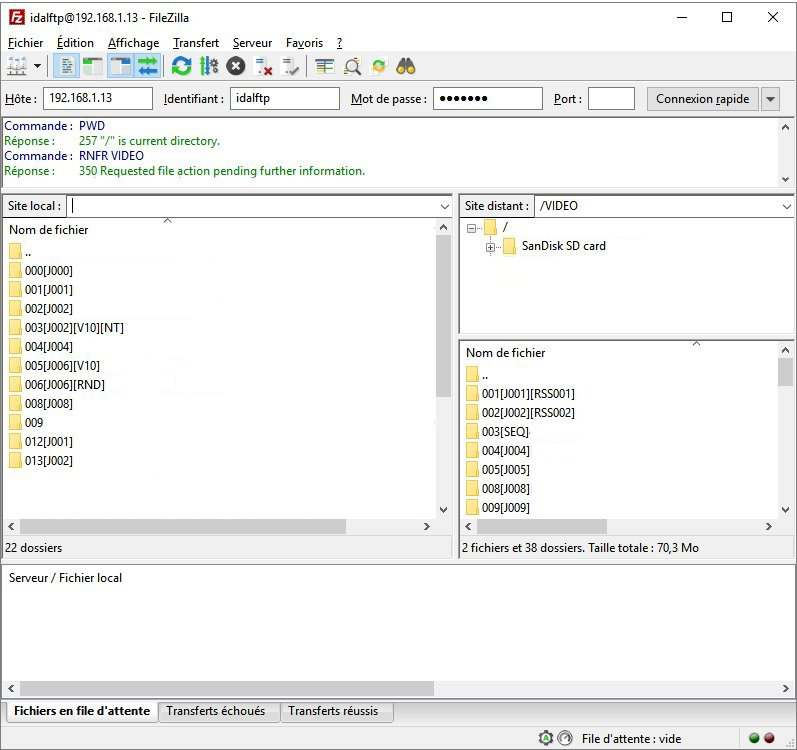
The FTP username and password can be changed through the configuration menu in the web interface.
Was this article helpful?
That’s Great!
Thank you for your feedback
Sorry! We couldn't be helpful
Thank you for your feedback
Feedback sent
We appreciate your effort and will try to fix the article