This guide explains how to install a firmware update for My Video Player VP320 / VP330 players using removable storage media.
- Download the firmware update file here.
- Extract the downloaded update file onto a USB drive.
The update will consist of two files with zip and json extensions:
vp3xx-full-update-vx.xx.zipvp3xx-full-update-vx.xx.json
The string of characters x.xx in the file name indicates the version number of the firmware that will be installed (example: vp3xx-full-update-v1.04.zip and vp3xx-full-update-v1.04.json).
Installation procedure
- Insert the USB drive into the video player.
- Press the ? key on the remote control and select System Settings.

- Select System Update.
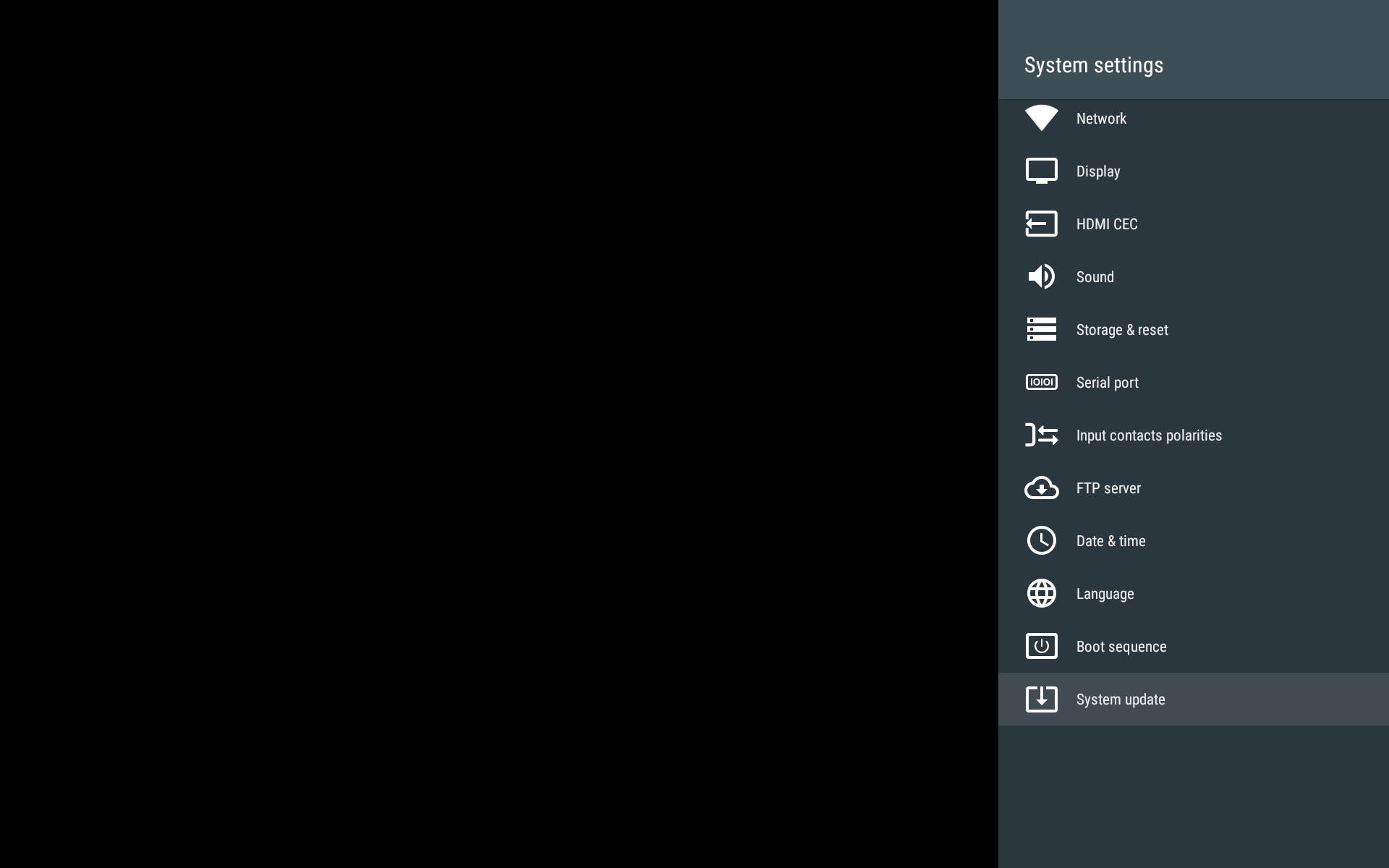
- Select Manual Update.

- Select the USB drive and, if necessary, the folder containing the update files.
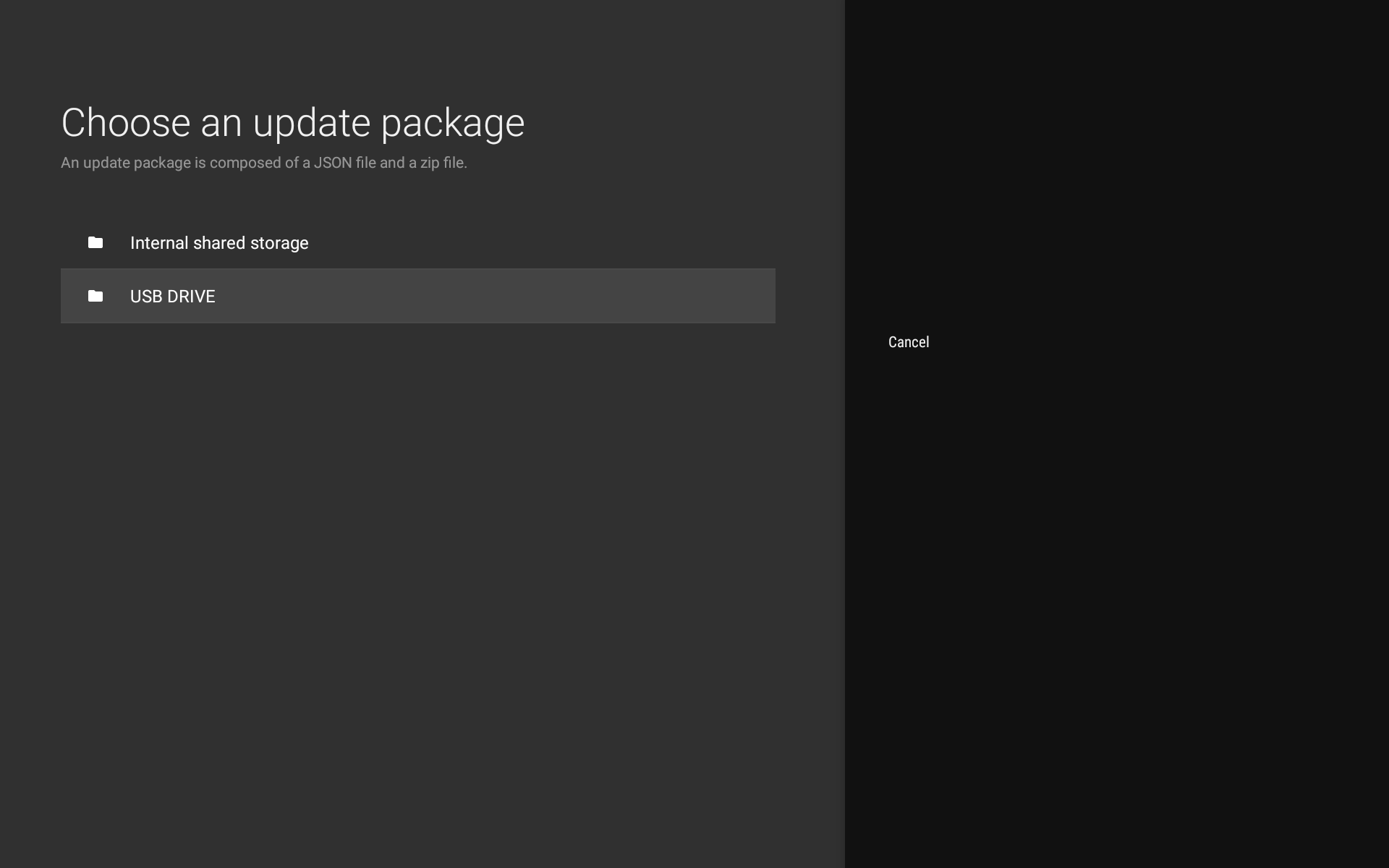
- Select the update
.jsonfile and press the OK key on the remote control.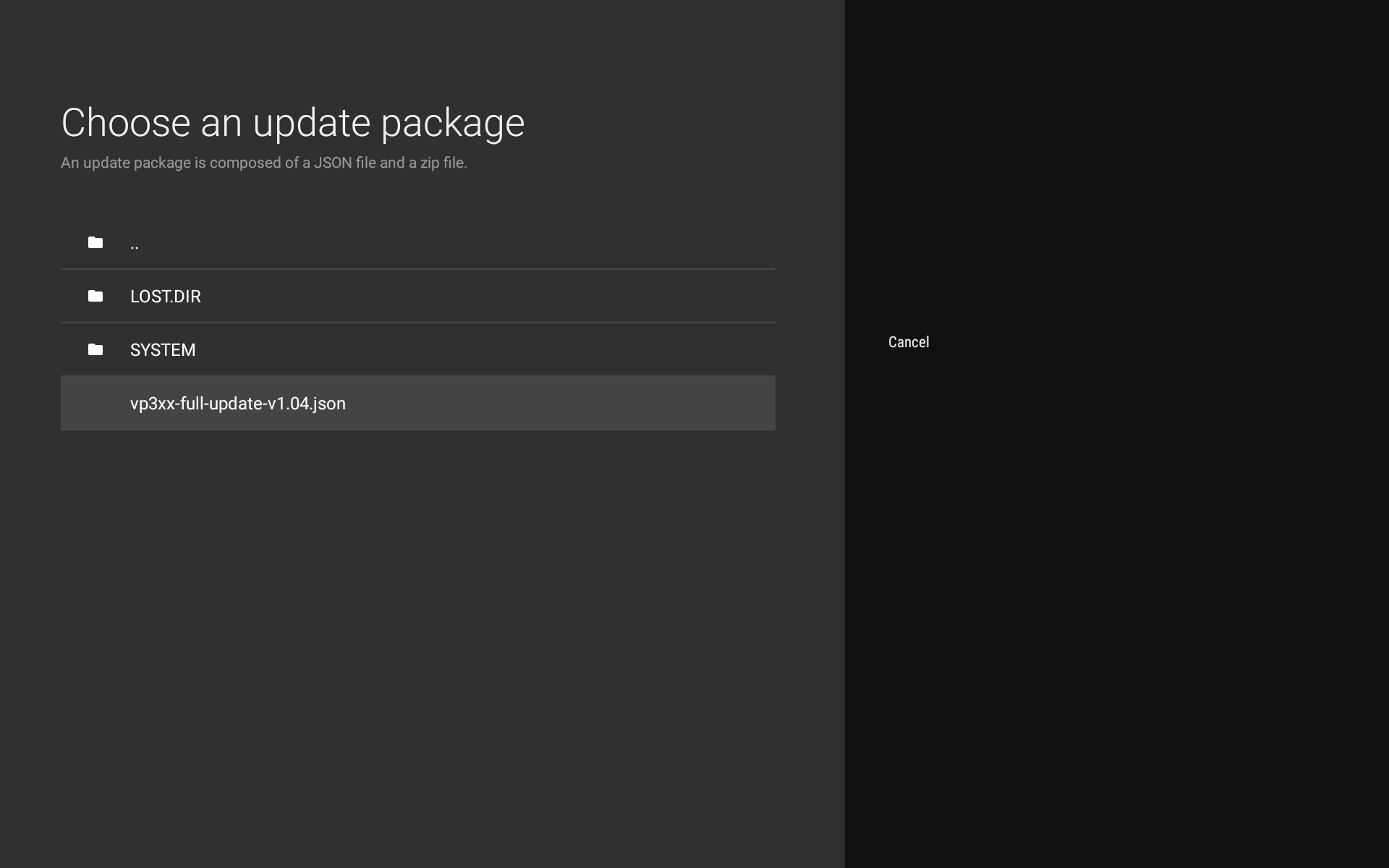
- Select Continue.
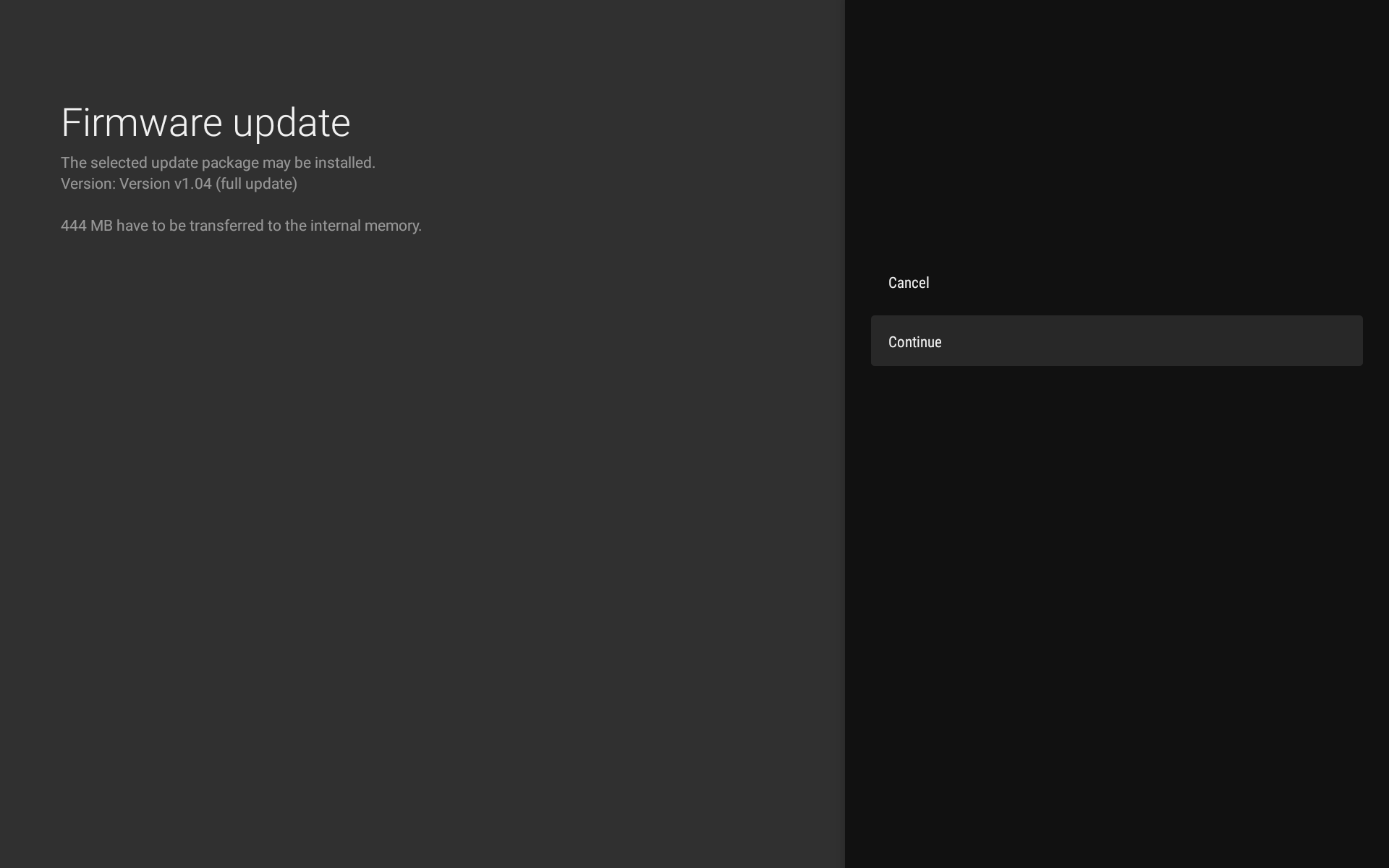 Cancel Continue
 - Wait for the update to finish copying.
Cancel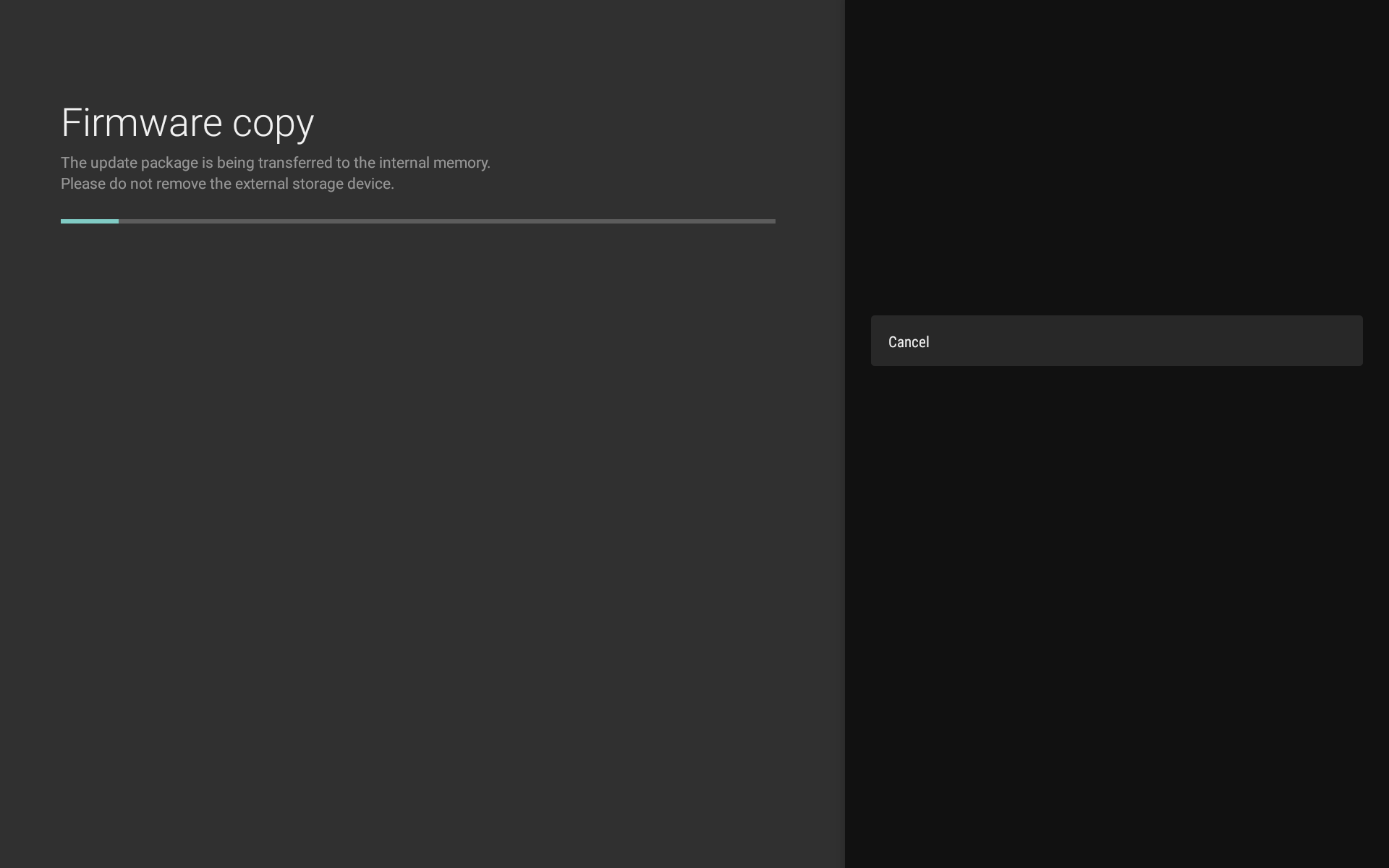
- Wait for the update verification to complete.
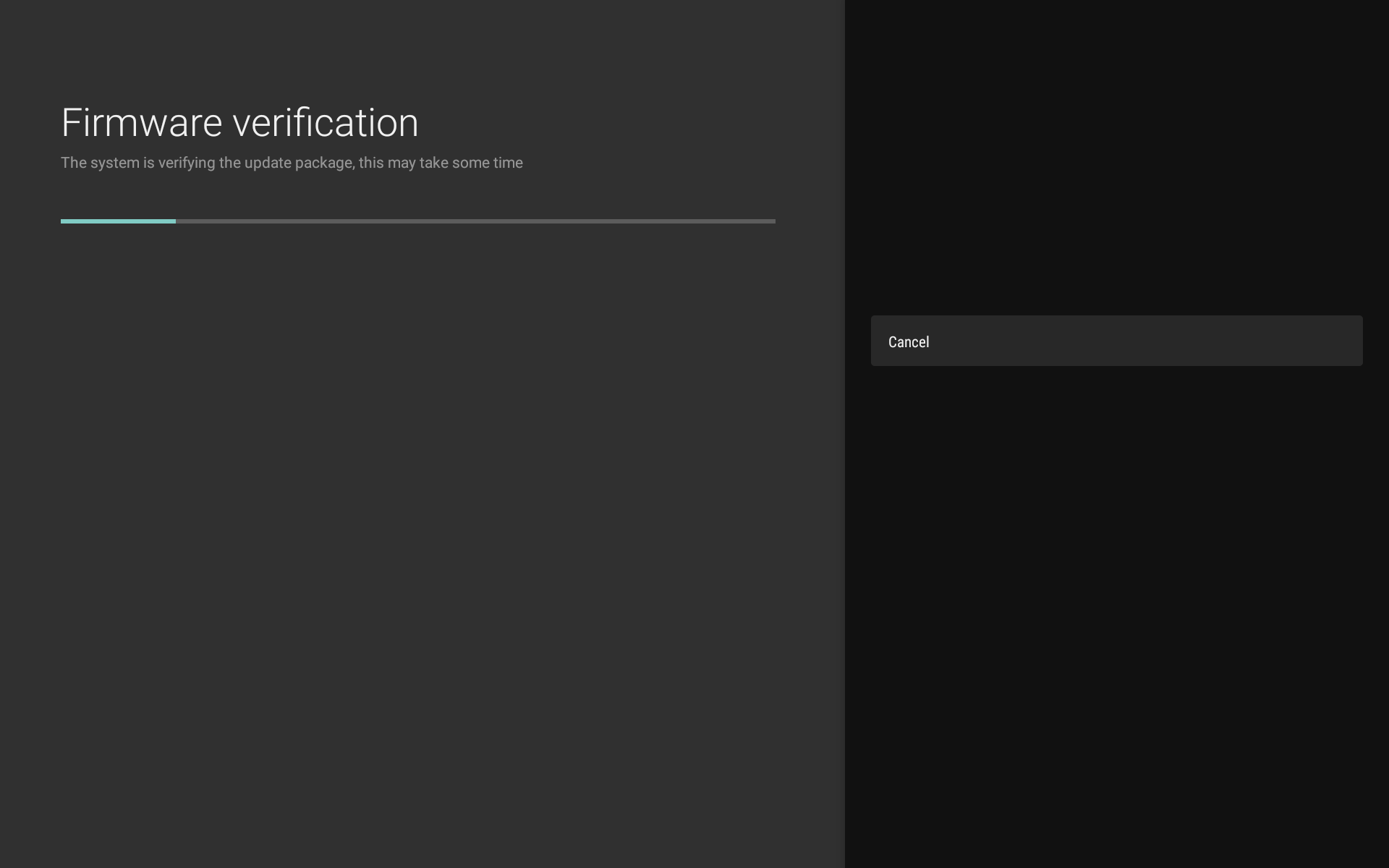 Cancel
 - Select Update.
Cancel Update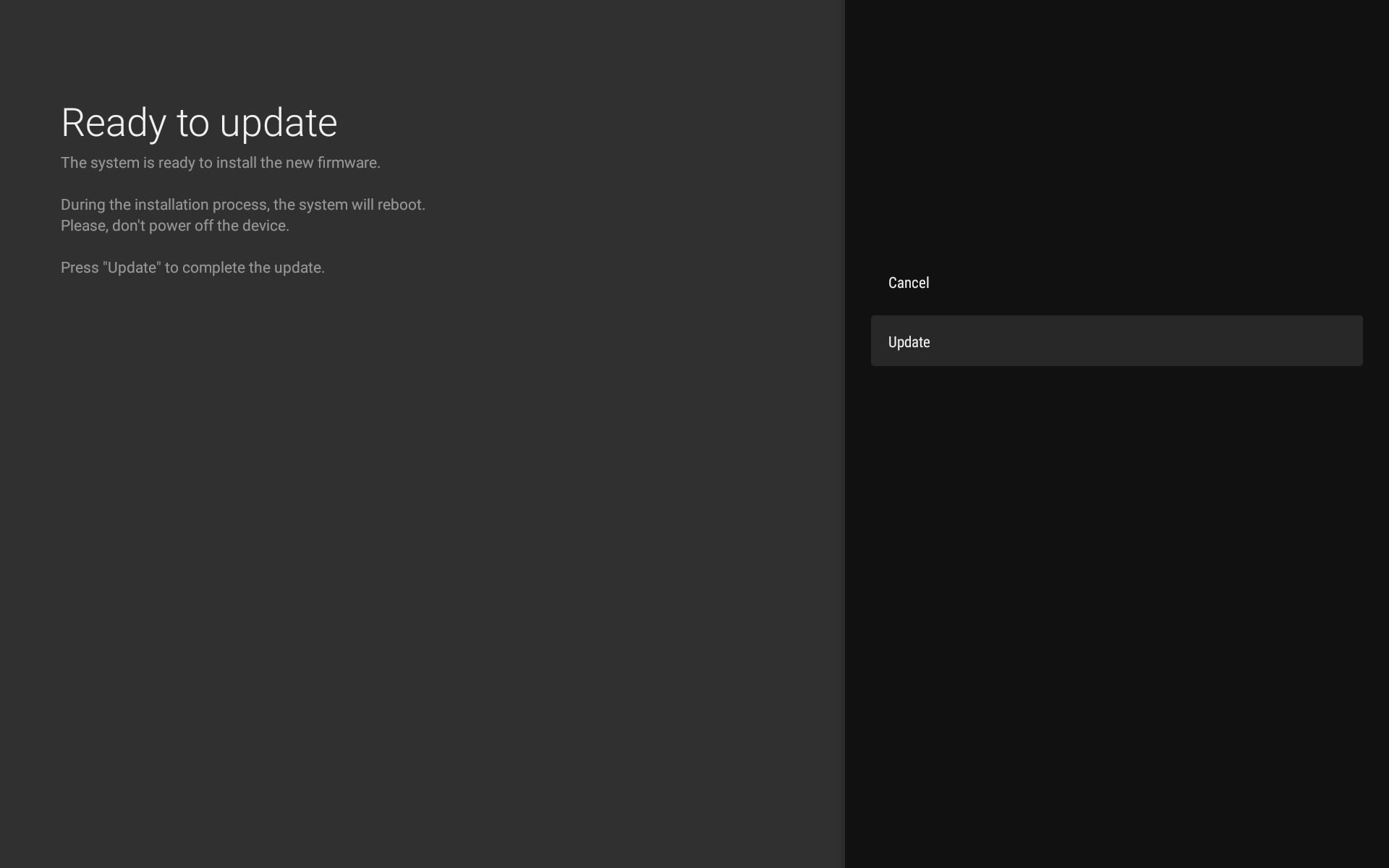
- Wait for the update to complete. The system restarts and installs the update:

Important: do not turn off the device or remove the external storage media during the entire update procedure.
Was this article helpful?
That’s Great!
Thank you for your feedback
Sorry! We couldn't be helpful
Thank you for your feedback
Feedback sent
We appreciate your effort and will try to fix the article