TABLE DES MATIÈRES
AP420
You can create a custom web remote control that will be hosted on the Player.
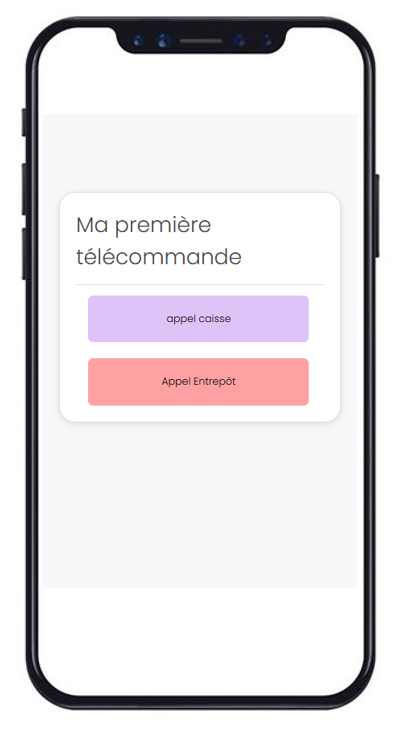
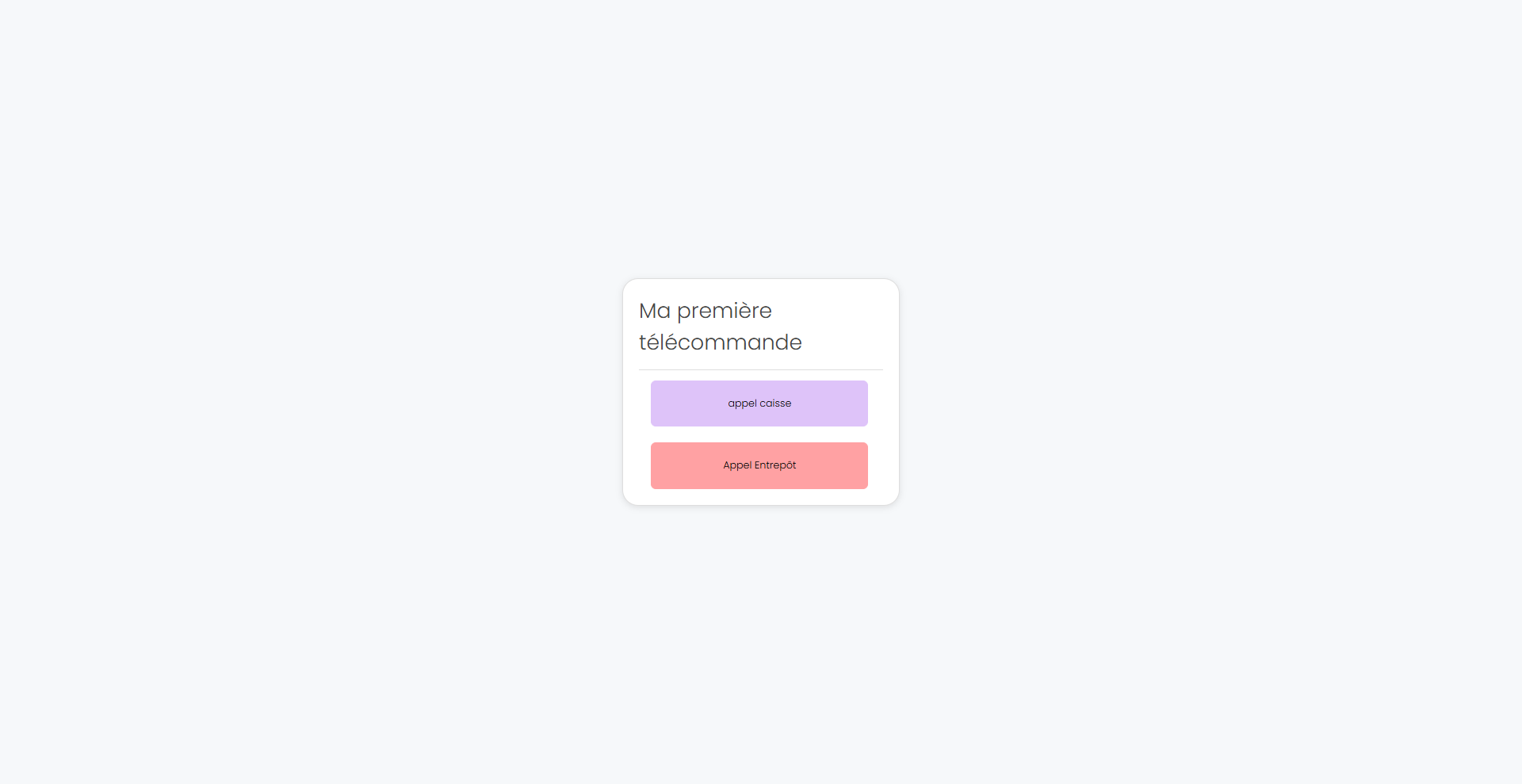
Here is an example of a remote control:
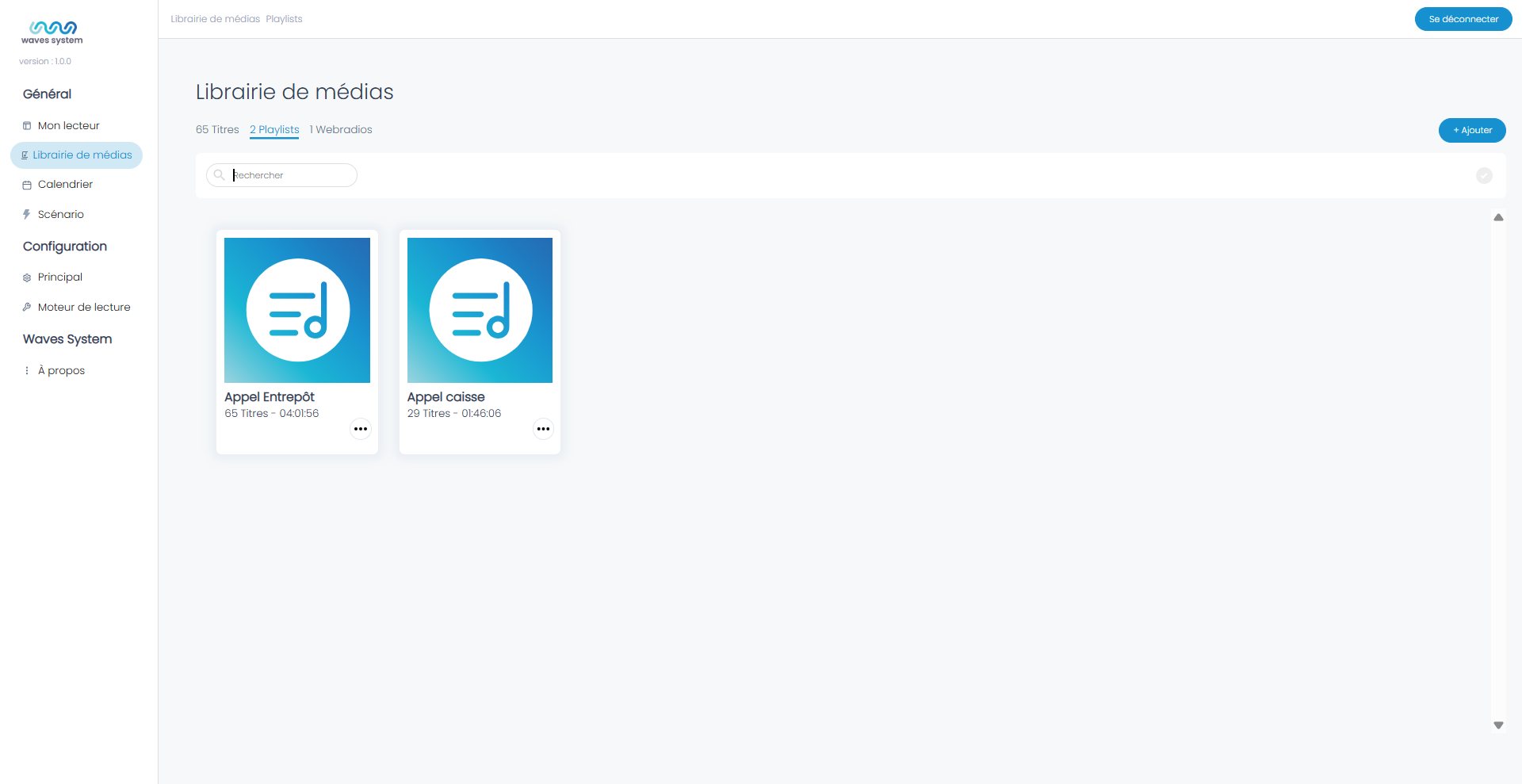
Start by creating the playlists that will be triggered by clicking the buttons.
Create the playlists:
- Checkout counter call
- Warehouse call
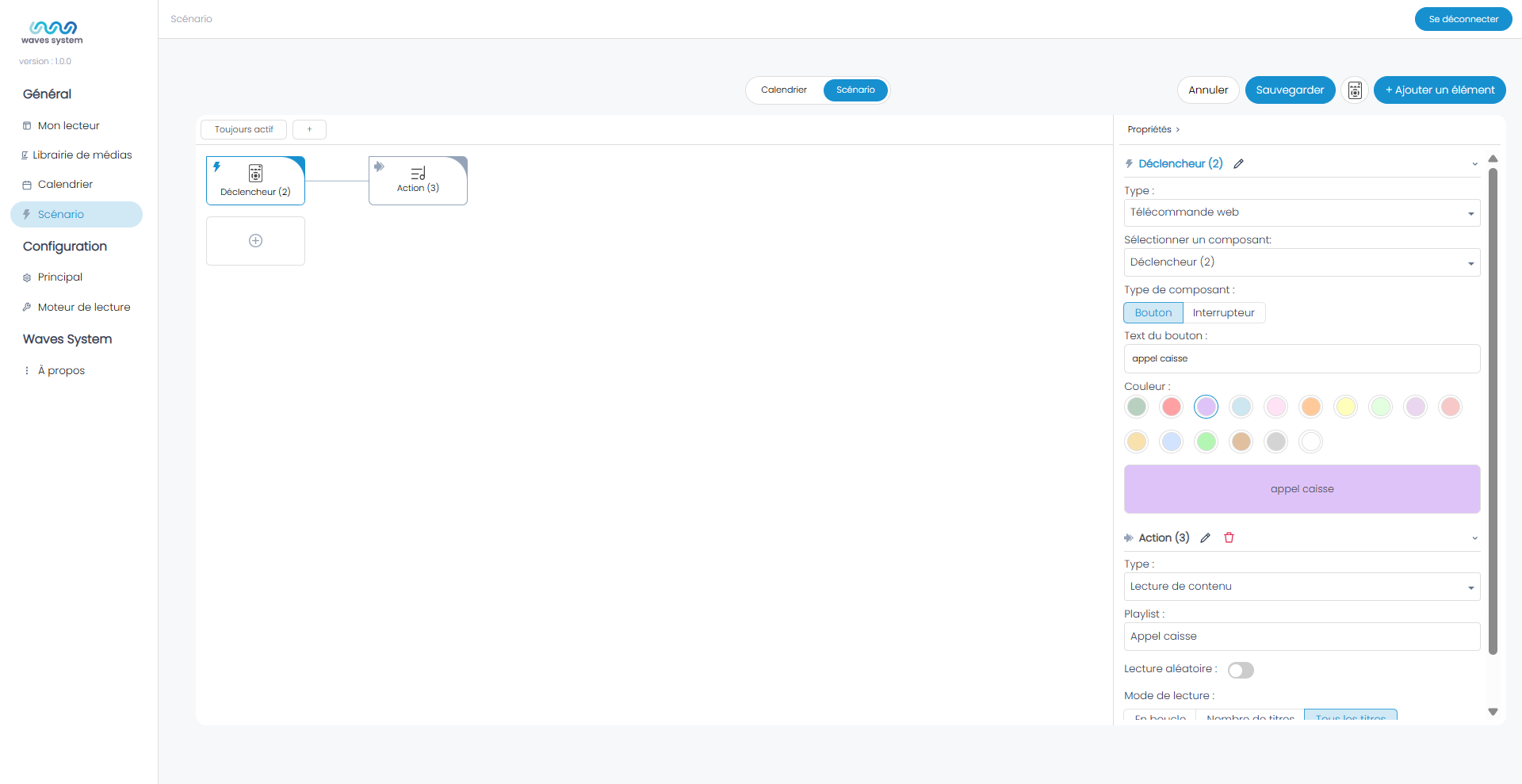
Go to Scenario
- Create a first Trigger.
- Select the Type: Web Remote Control.
- Rename the button text to "Checkout Counter Call".
- Choose the button color.
In Action, select the Type: "Content Playback" and the playlist "Checkout Counter Call".
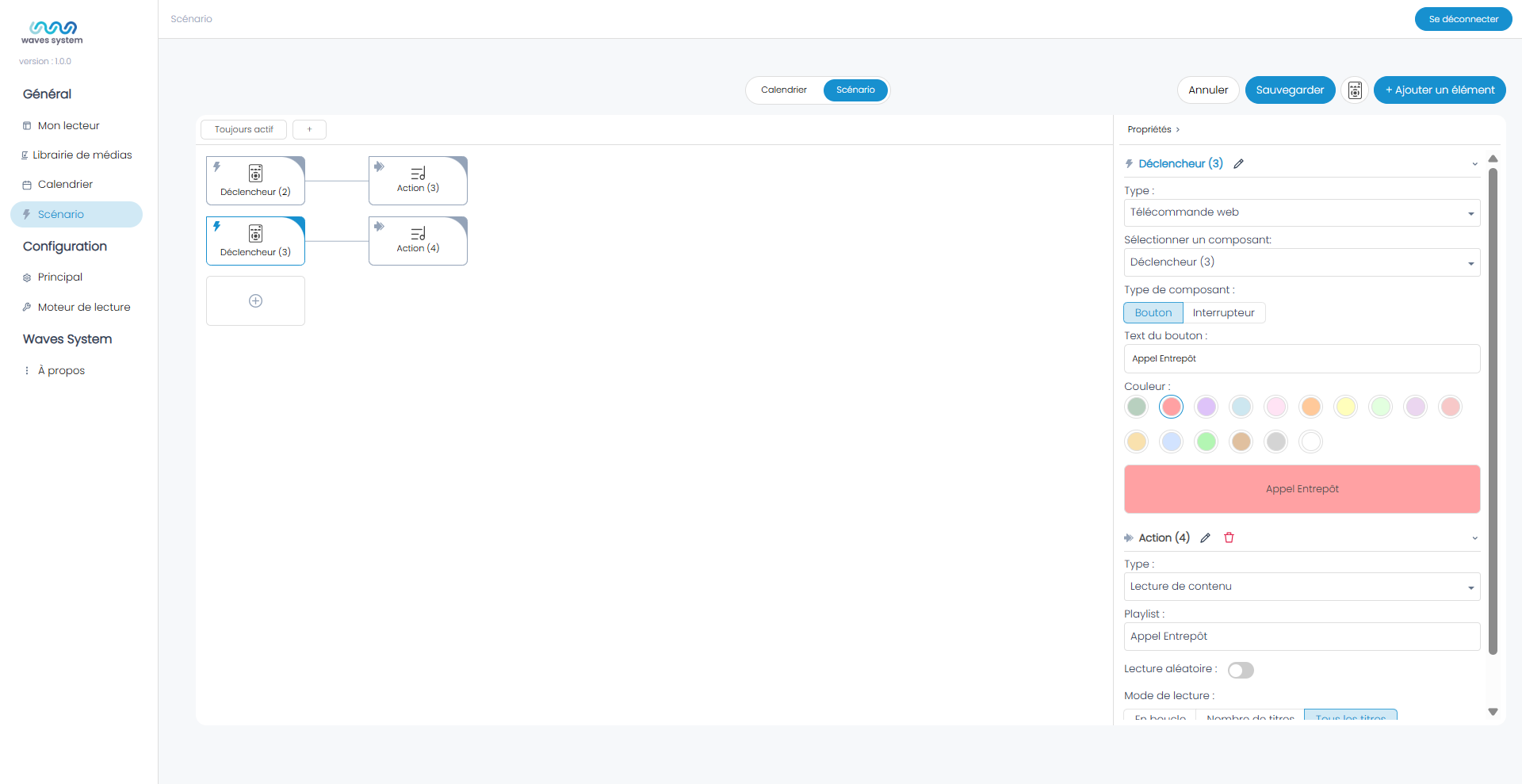
Create a second Trigger and follow the same steps.
Click on Save, then on the Remote Controlbutton.

The "Web Remote Control Properties" window appears.
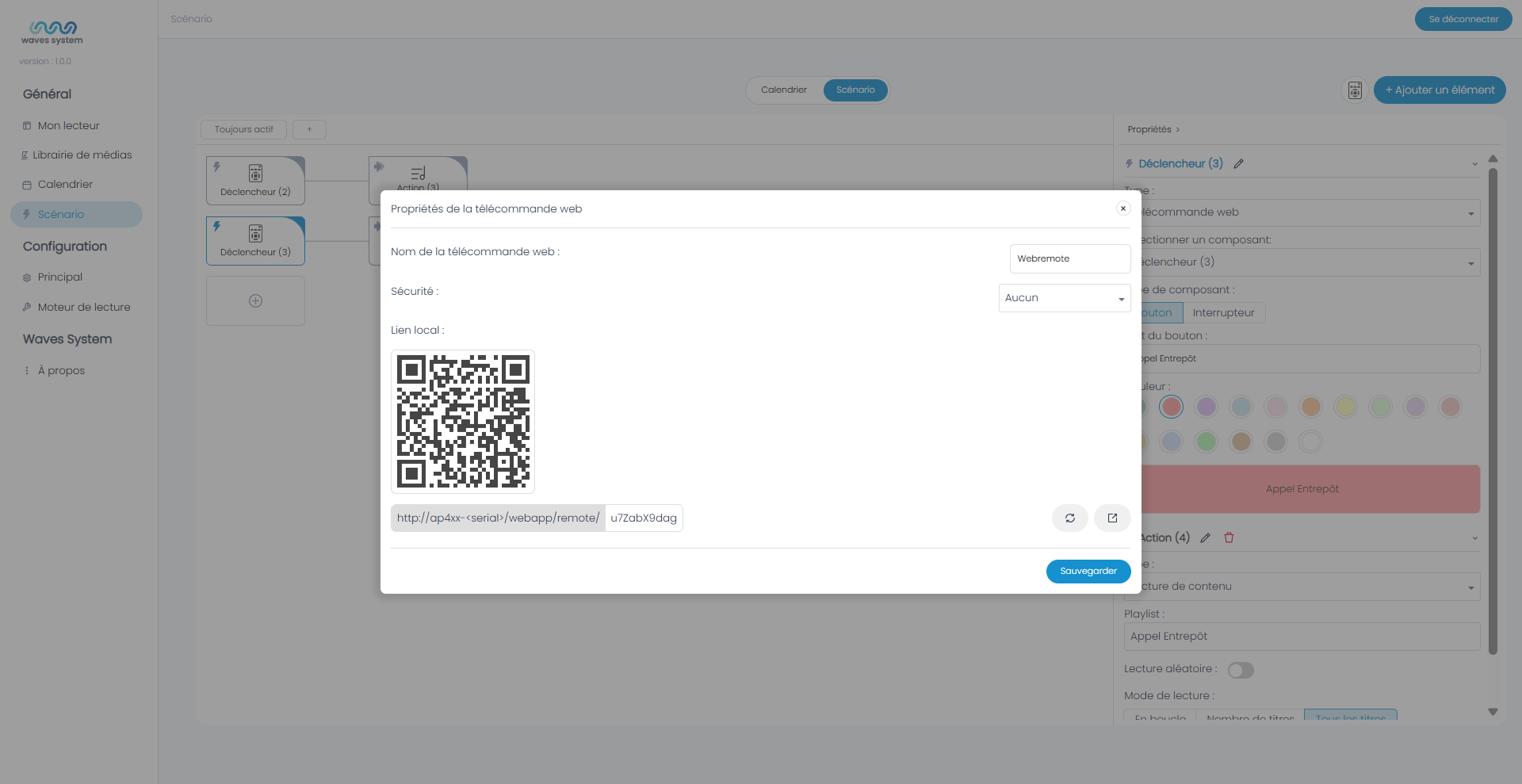
Edit the Remote Control Name, for example, "My First Remote Control", then click Save.
Click on the remote control again. A URL is generated and recalled by a QR code.
Open this page with the icon: 
A tab opens and displays a remote control that allows you to control the Player.
Wavespark Audio
Within a project, you can also create a web remote control.
To do this, follow the same procedure as on the AP420.
The generated URL is not directly accessible from Wavespark because the link is only valid on the Player's local network. Once the project is assigned to the Player, the local URL will be active and available.
Was this article helpful?
That’s Great!
Thank you for your feedback
Sorry! We couldn't be helpful
Thank you for your feedback
Feedback sent
We appreciate your effort and will try to fix the article