The RJ45 Ethernet connection allows the player to connect to a local area network (LAN) or a remote network (the internet).
This connection to a standard computer network provides access to the following functions:
| Function | Description | Network type | More information |
|---|---|---|---|
| Web radio | Playback of web radios. | Local / Remote | Web Radio |
| Embedded HTTP web server | Control and configuration. | Local / Remote | Web Server. |
| FTP server (File Transfer Protocol) | Manage player content from an FTP client application. | Local / Remote | Management of the Main Storage Device Content. |
| FTP clients (File Transfer Protocol) | Manage player content from one or more FTP servers. | Local / Remote | Management of the Main Storage Device Content. |
| Samba server | Manage player content from a Samba client application. | Local | Management of the Main Storage Device Content. |
| Clock synchronization via NTP | Set the player’s clock using one or more NTP servers. | Local / Remote | Setting the Clock of the Player. |
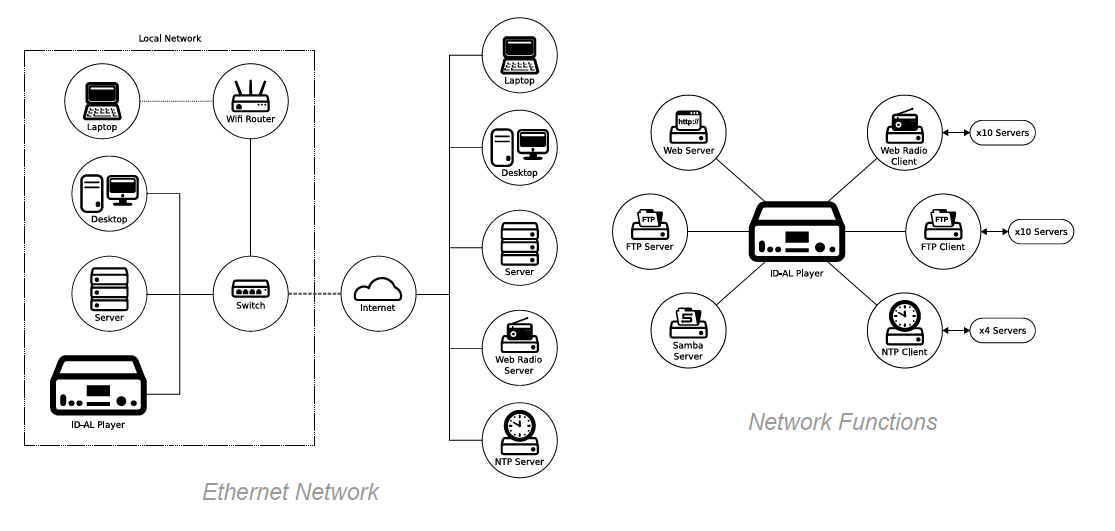
Establish a wired network connection
Hardware connection
- Make sure the player is turned off and the power adapter is disconnected.
- Connect an Ethernet cable between the local network access point, such as a network switch or router, and the player’s RJ45 connector.
- Connect the power adapter. On My Music Player, also press the on/off switch.
To use all the player’s network functions, determine whether the connected network supports the Dynamic Host Configuration Protocol (DHCP).
Automatic connection using DHCP
If the network supports DHCP, the player may be accessible on the network automatically. To check this, open a web browser and access the player’s web server.
If the player is still not accessible on the network, try configuring the network connection manually using a static IP address.
Manual configuration using a static IP address
If the network does not support DHCP, certain information is required before the player can be accessed on the network. If this information is unknown, contact the local network administrator or internet service provider.
- IPv4 address: A unique address used to identify the player on the network. An IPv4 address consists of four groups of numbers separated by dots, for example
192.168.100.10. With DHCP, the address is assigned automatically and may change periodically. With a static IP configuration, the address is fixed and does not change dynamically. - Subnet mask: Defines the possible address range of the network to which the player is connected. It has the same format as an IPv4 address, commonly
255.255.255.0. - Network gateway: The IPv4 address of the device the player uses to access the internet, commonly the router’s IPv4 address.
- DNS server: The IPv4 address of a DNS server. The player uses DNS to obtain the IP address associated with a domain name. This allows it to access FTP, NTP and web radio servers using their domain names. For example, DNS returns the IP address
208.80.154.224for the Wikipedia website whenhttps://www.wikipedia.orgis used. Domain names such aswikipedia.orgare easier to use than IP addresses. At least one DNS server address is required; a second can be entered in case the first server is unavailable.
To configure the network connection manually without access to the player’s web server, use the instructions in Front Panel User Interface. Then open a web browser and try to access the player’s web server again.
Identify the player on the network
To access the player’s embedded web and FTP servers, identify its network address on the Ethernet network. Depending on the network, several methods are available.
Use the player’s default NetBIOS name
Through the network’s NetBIOS service, the player responds by default to a factory name. This name consists of mmp- or MMP- followed by the player’s hexadecimal serial number, for example mmp-8b0a or MMP-B04F. Uppercase and lowercase letters can be used interchangeably.
To find the hexadecimal serial number, check the label underneath the player or its LCD screen when the player is stopped.
Use the player’s IP address
The player responds to a unique IPv4 address on the Ethernet network, for example 192.168.0.104. Depending on the network settings, this address can be static, assigned manually and unchanged over time, or assigned dynamically by a DHCP server and subject to change.
To find the player’s IP address, check the Advanced menu: Administrator → Ethernet.
Note: Because the player’s IP address can change when DHCP is used, the NetBIOS host name is preferable for identification because it is independent of the assigned IP address.
Use a custom NetBIOS name
The player can respond to a custom name through the network’s NetBIOS service. Set this name in the NetBIOS parameter of the player’s Samba settings.
If the NetBIOS parameter is empty, the default factory name is used. Uppercase and lowercase letters can be used interchangeably.
Access the player over the internet
When the Ethernet settings are configured correctly, the player’s network functions are accessible from the local network. Some embedded functions, such as the web server and FTP server, require additional settings to be accessible over the internet.
Network availability and internet access depend on the infrastructure in which the player is installed. Contact the local network administrator or internet service provider for more information about the network setup.
Many configurations are possible. The following sections illustrate two common examples.
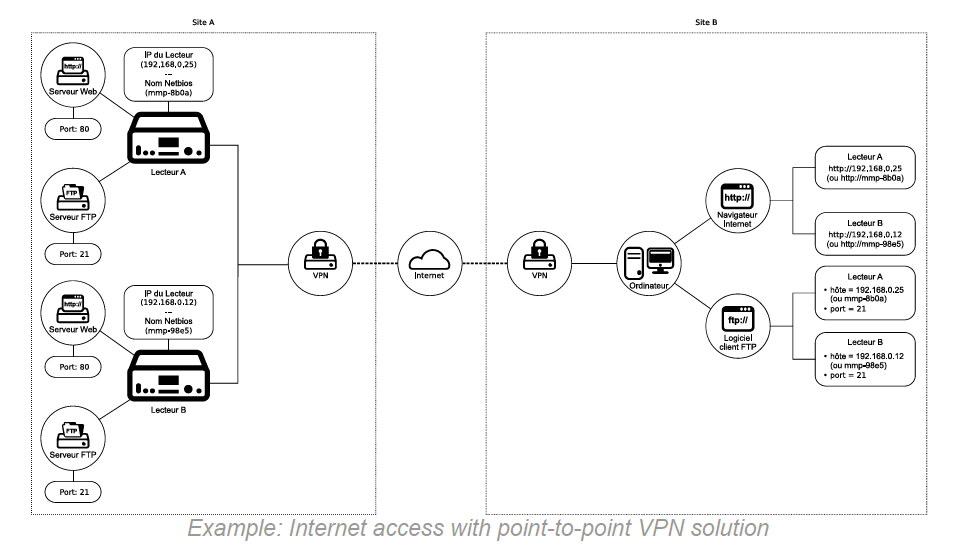
1. Use a secure network with a VPN solution
Use a VPN to access the player over the internet in the same way as on the local network. This method is recommended because it provides secure network access through tunnelling and encryption while retaining the ease of use of a local area network.
To obtain the best possible security, a point-to-point VPN installation is suggested, as shown in the following example.
2. Use an unsecured network with NAT/PAT on the local internet router
For basic internet access to the player without specific security precautions, most internet routers can create a gateway between the local network and the internet. To do this, add translation rules for the player’s address and the port numbers used by its network functions in the router’s NAT/PAT configuration.
For one player, establish two translation rules:
- Web server: Translate the player’s IP address on port
80to the internet router’s address on an available port. Port80is recommended. - FTP server: Translate the player’s IP address on port
21to the internet router’s address on an available port. Port21is recommended.
To obtain the router’s internet address, contact the local network administrator or internet service provider.
Configure the router as follows:
- Sign in to the router’s administration service.
- In the NAT/PAT settings, add a rule for each player service that requires internet access. For each rule, select the TCP protocol and the player’s network identifier: its IP address or NetBIOS name.
- For the player’s web server:
- Select HTTP as the protocol used by the web server.
- Select port
80as the rule’s source on the local network. - Select an available port as the port accessible from the internet. Port
80is recommended.
- For the player’s FTP server:
- Select FTP as the protocol used by the FTP server.
- Select port
21as the rule’s source on the local network. - Select an available port as the port accessible from the internet. Port
21is recommended.
- For the player’s web server:
- Save and apply the new translation rules.
- In the firewall settings, make sure the selected ports are not filtered.
Note: The player supports IPv4 networks only. The modem or router connecting the player to the internet must therefore provide a NAT/PAT function. The player’s web server uses port 80 and its FTP server uses port 21.
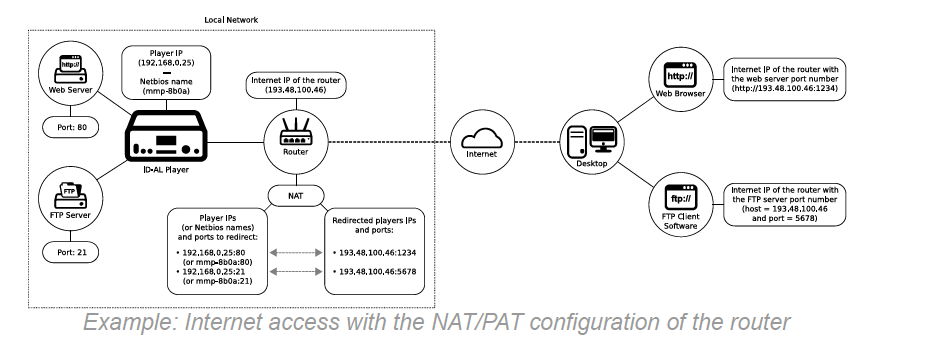
Example: internet access using NAT/PAT on a router
In this example:
- The player’s IP address is
192.168.0.25and its NetBIOS name ismmp-8B0A. - The router’s internet IP address is
193.48.100.46. - The router’s NAT/PAT configuration translates:
- The player’s web server, using TCP/HTTP, from port
80to port1234. - The player’s FTP server, using TCP/FTP, from port
21to port5678.
- The player’s web server, using TCP/HTTP, from port
This means that:
- The player’s web server can be accessed over the internet from a web browser at
http://193.48.100.46:1234. - The player’s FTP server can be accessed over the internet from FTP client software using host address
193.48.100.46and port5678.
Network glossary
- Wired connection
- A connection established when a device is physically connected to a router or Ethernet port by a cable. This is a common way for desktop computers to connect to the internet and a local network.
- Ethernet port
- The connector into which an Ethernet cable is plugged to establish a wired connection to an Ethernet network.
- Router
- A device designed to connect a local network to the internet.
- IP address (Internet Protocol)
- A unique number assigned to a device, such as a player or computer, so that the router can identify it on the network. The unique address allows the router to communicate with the player and send and receive data.
- MAC address
- A fixed, unique hardware address for the player. It can be useful when establishing a network connection.
- DHCP (Dynamic Host Configuration Protocol)
- A way to configure the player on the network by automatically assigning it an IP address. DHCP is usually enabled by default on a router and is generally a quick way to establish an internet connection. If you are unsure whether the router uses DHCP, contact the local network administrator or internet service provider. If DHCP is not configured, the network administrator can provide the settings required to make the player available on the network.
- VPN (Virtual Private Network)
- A VPN extends a private network across a public network such as the internet. It allows users to send and receive data over shared or public networks as if their devices were directly connected to the private network. Applications running over the VPN can therefore benefit from the functionality, security and management of a private network.
- NAT/PAT (Network Address Translation / Port Address Translation)
- Router services that make several private hosts available through a publicly accessible IP address.
- Firewall
- A network security system that monitors and controls incoming and outgoing network traffic according to predetermined security rules.
- FTP (File Transfer Protocol)
- A standard network protocol used to transfer files between a client and a server over a computer network.
- Samba
- Software that enables file and printer sharing between computers running Microsoft Windows and computers running Unix-based systems.
- NetBIOS (Network Basic Input/Output System)
- A service that provides a correspondence between a NetBIOS name and an IP address for each device on the network.
Was this article helpful?
That’s Great!
Thank you for your feedback
Sorry! We couldn't be helpful
Thank you for your feedback
Feedback sent
We appreciate your effort and will try to fix the article