The AP420 player can be paired with sensors and actuators communicating via a serial link. This is precisely the protocol used, for example, by the company Nexmosphere. It is also a common protocol for those who program under Arduino.
The Scenario interface allows you to configure a trigger based on the reception of a serial message coming from a serial connection on a USB port.
TABLE OF CONTENTS
Implementation example
You want to create an experience in a perfumery that triggers an audio message when a visitor picks up a perfume bottle. This is possible with the AP420 paired with a Nexmosphere-type RFID sensor.
Here are the steps, one by one.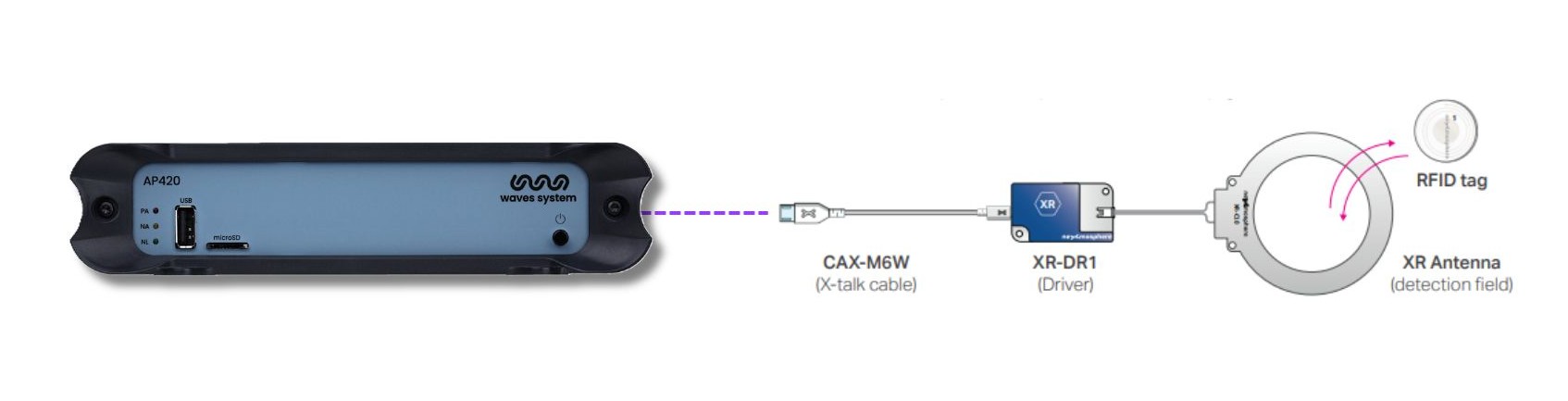
Configuration
The first step is to configure the serial link in the main configuration menu.
When a USB device is inserted, a new configuration named (Default) appears in the interface. Click on it to access the configuration settings.
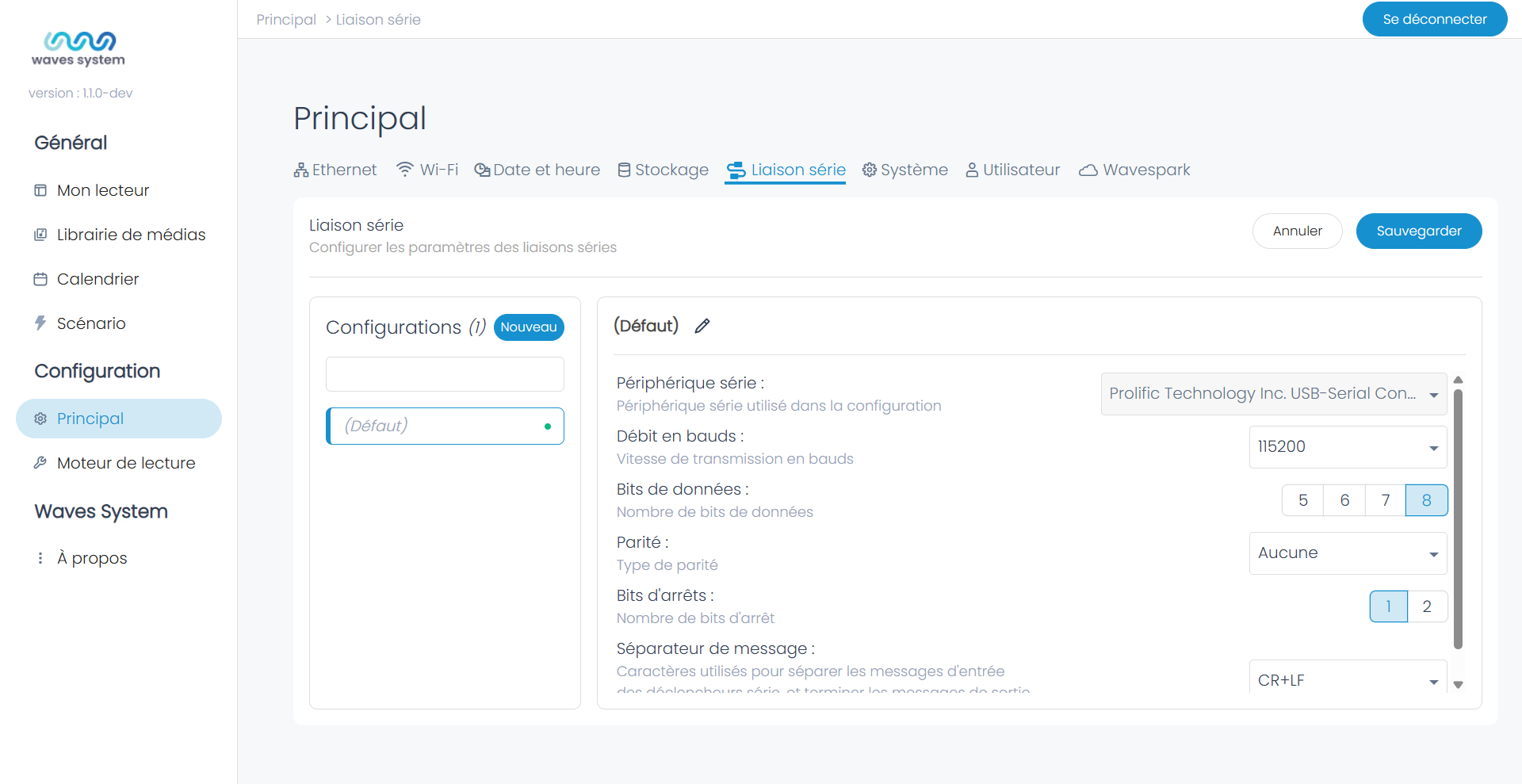
Rename the configuration, for example here "Nexmosphere".
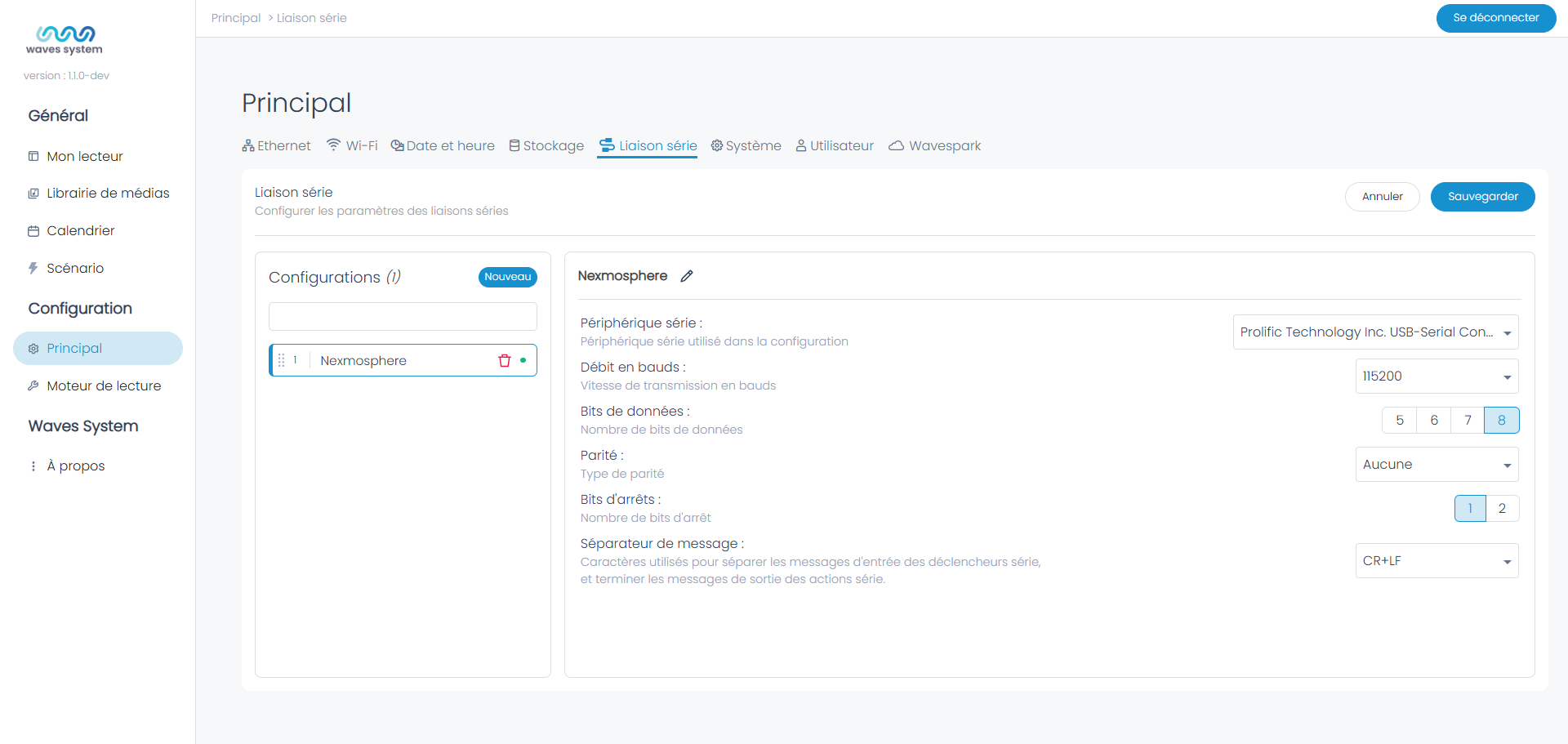
The configuration is assigned an index next to the name. Here "1".
Fill in the other fields if needed, then Save.
Each time a new device is inserted, a new configuration is added to the previous ones.
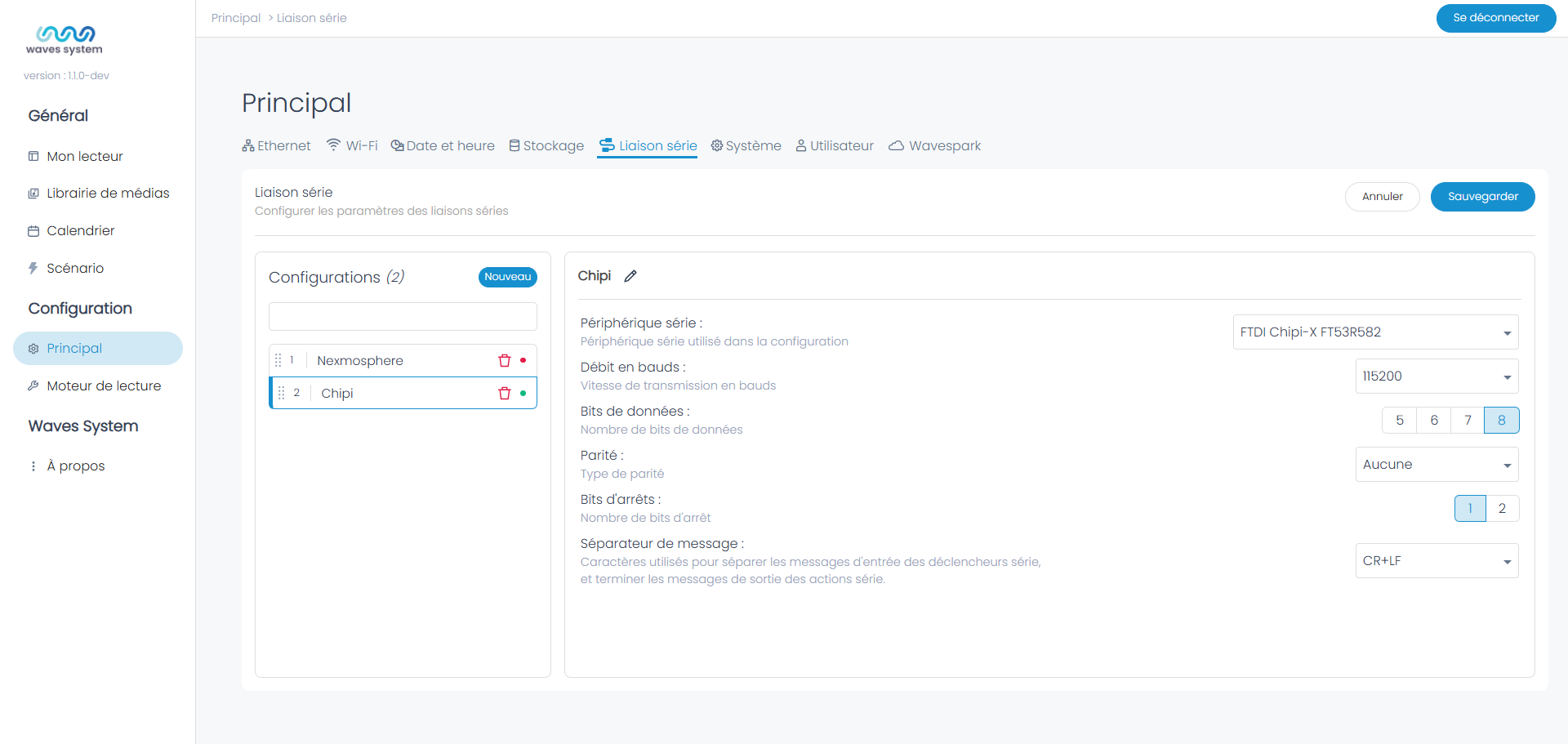
Serial link triggering
Once the configuration is complete, go to Scenario and create a new trigger of the "serial message" type. Select the desired configuration, then enter the reception message(s).
In the example, the two messages XR[PU001] and X001A[1] indicate that an RFID antenna has left the detection zone.
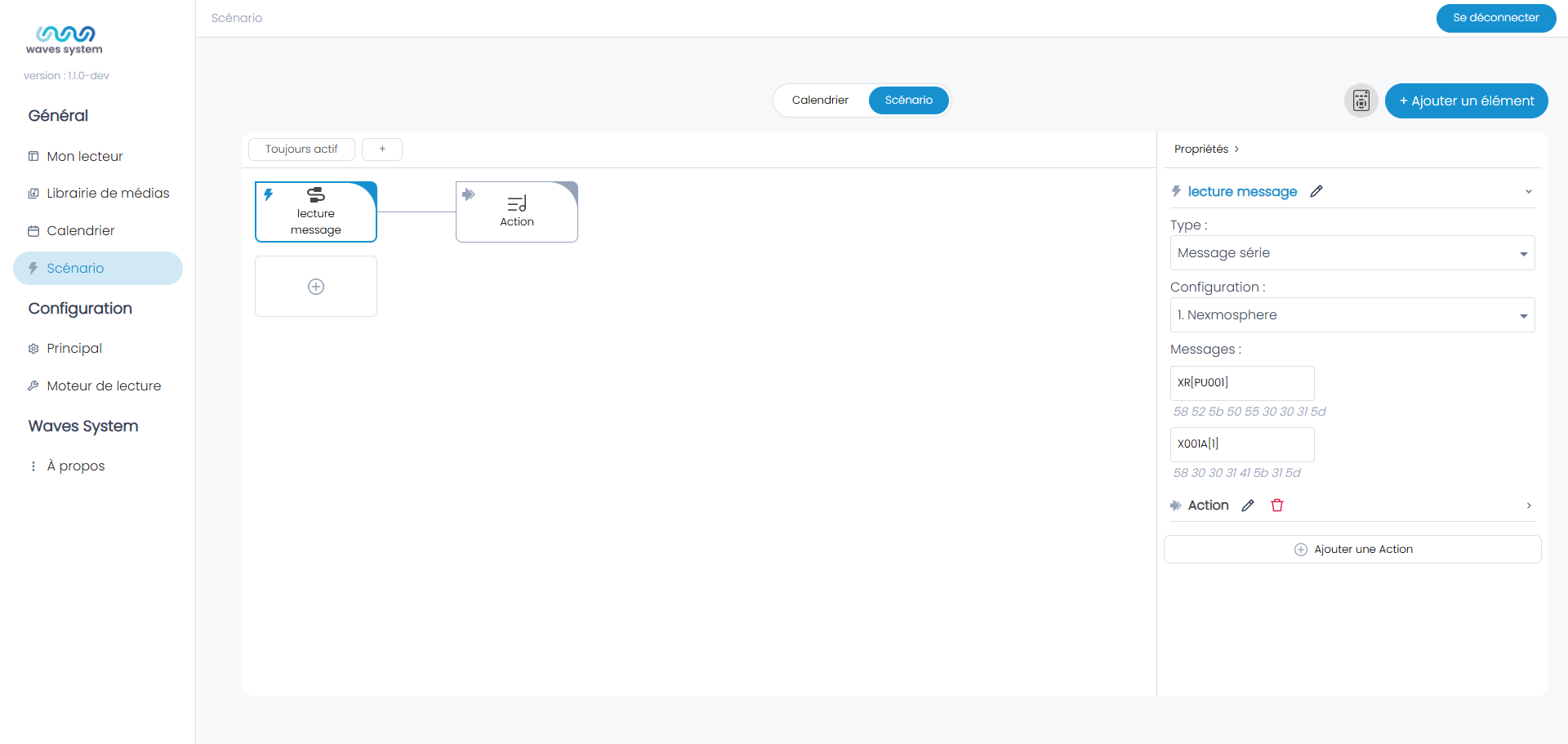
Continue the programming by defining the associated action and save.
Thus, each time the message is received via the serial link, the player triggers its action.
Serial link action
Similarly, the player can send a message over the serial link by configuring an action. To do this, select the "serial message" type in Action, specify the desired configuration, and describe the message.
Save.
Similarly, the player can send a message over the serial link by configuring an action. To do this, select the "serial message" type in Action, specify the desired configuration, and describe the message. Finally, save.
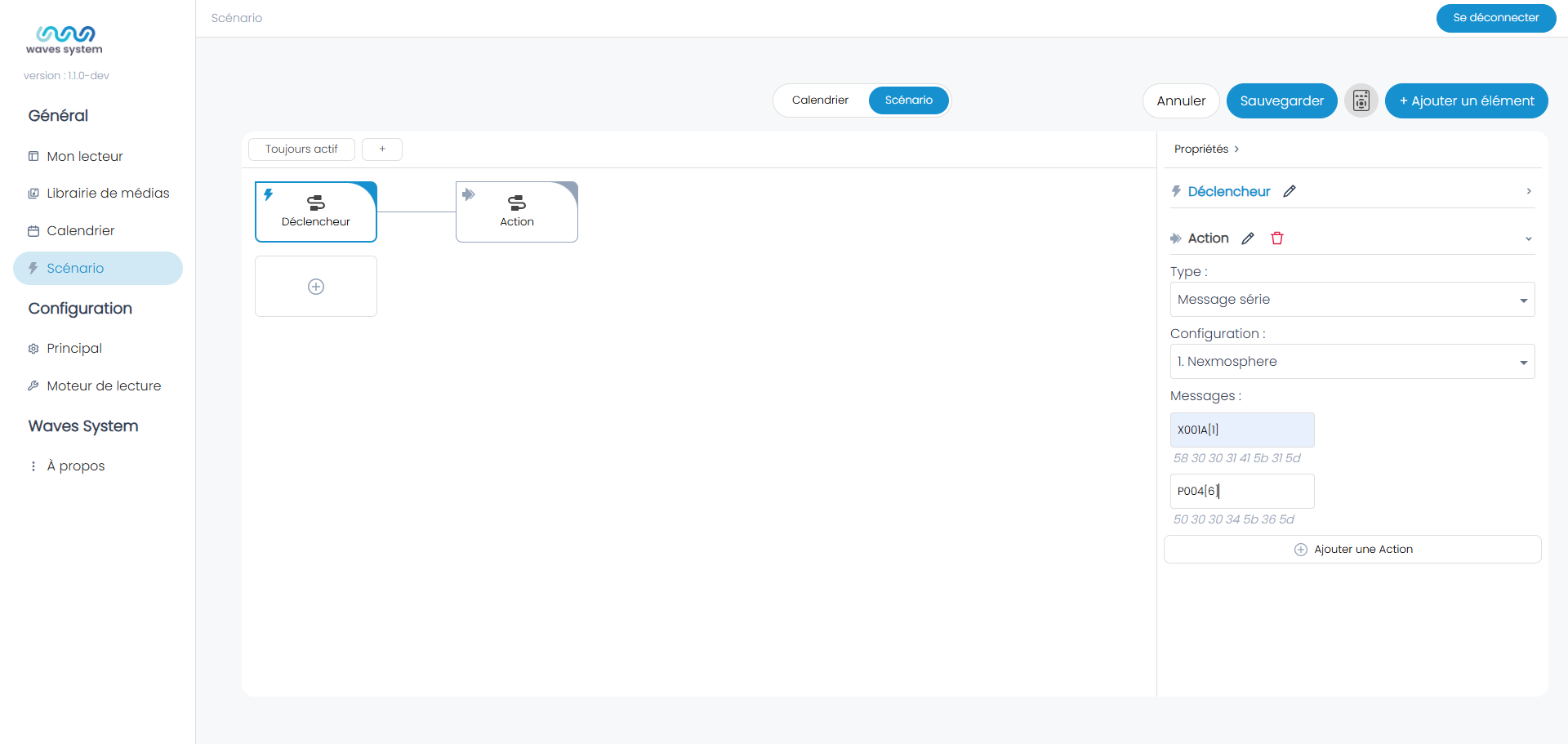
Thus, at each trigger condition, the player sends a serial message.
Was this article helpful?
That’s Great!
Thank you for your feedback
Sorry! We couldn't be helpful
Thank you for your feedback
Feedback sent
We appreciate your effort and will try to fix the article